Class management
For the catechism board, class coordinators and catechists who run catechism in the parish. Most of the work happens on a computer, at dash.i-catholic.org → Lớp Giáo Lý (Catechism Classes).
- Do it on
- Computer (Dashboard)
- Time needed
- 10 minutes to read
- Before you start
- An account granted a role at the parish
- When you finish
- You know where each task lives
What you can see depends on your role (Administrator / Coordinator / Catechist) and on the operating mode your parish has chosen in School settings.
Most common tasks
Create a new catechism class
AttendanceTake attendance with QR
PeopleFind and open a student record
LeaveApprove a student leave request
Reference dataCreate a new school year
ImportImport a student list from a file
The Overview screen
Open Lớp Giáo Lý → Tổng quan (Catechism Classes → Overview) to see how many classes, students and catechists you have, plus attendance for the selected school year.
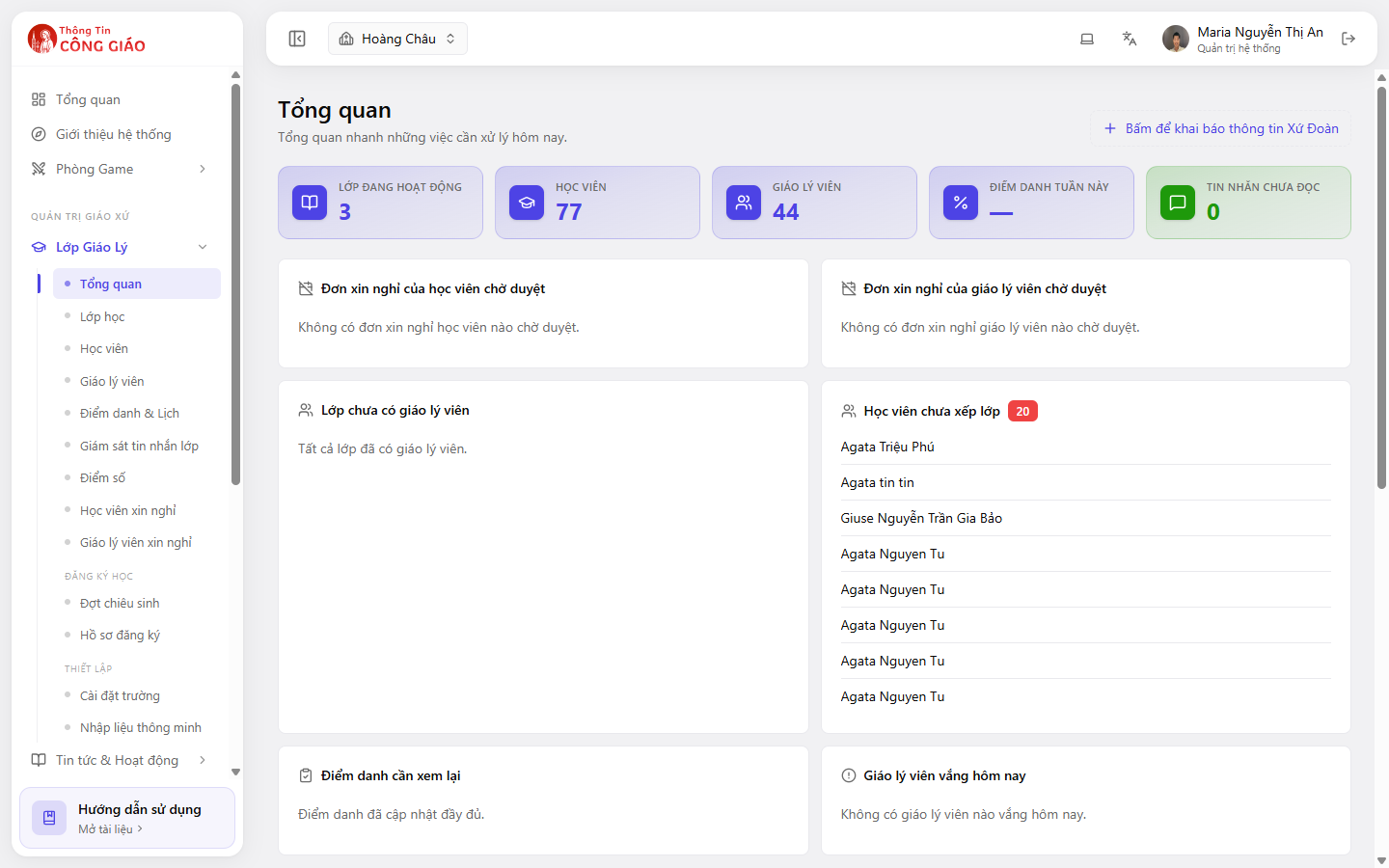
What is in the Catechism Classes menu
| Group | Item | Used for |
|---|---|---|
| Catechism classes | Overview · Classes · Students · Catechists | Viewing and managing classes, learners, teachers |
| Sessions | Attendance & Schedule · Grades · Class message monitoring | Creating sessions, taking attendance, grading |
| Leave | Student leave · Catechist leave | Creating and reviewing requests |
| Enrolment | Enrolment rounds · Applications | Opening enrolment, reviewing applications |
| Setup | School settings · Smart import | School year, terms, subjects, importing from a file |
Read them in this order
- Getting started — get into the Dashboard, pick the right parish and school year
- Classes — create a class, add students and catechists
- Attendance — create sessions, take attendance with QR, read the reports
- Leave — approve requests and cross-check them when taking attendance
Where people get stuck
This section has a Frequently asked questions page collecting the most common sticking points: menus not showing, no classes listed, QR scanning failing, locked grade fields, duplicate records on import.
No classes listed — check the School Year selector at the top first, because it filters nearly every screen in this section. A menu item missing — usually your role, or the operating mode your parish has chosen in School settings.
Video guide
Now playing: Dashboard overview, from 0:00
Frequently asked questions
Which operating mode should our parish choose?
Choose by what your parish actually does — not by which mode has the most features:
- Simple — you only need to know who attended and who was absent. Most smaller parishes stop here and that is enough.
- Topic classes — you grade, and each class studies its own subjects (Scripture, Marriage preparation).
- Catechism programme — grading follows the programme framework for each grade level.
Settle this at the start of the school year: switching mid-term loses no data, but your catechism team has to relearn the interface halfway through. See School settings.
What should we do first when our parish starts using this?
In this order, because each step needs the one before it:
- School year — without it you cannot create classes
- Operating mode in School settings
- Classes, then add catechists and students
- Attendance — create your first session
If you already have the student list in an Excel file, use Smart import instead of typing in each child.
How do the three roles differ?
| Role | Can do |
|---|---|
| Administrator | Everything, including School settings and Smart import |
| Coordinator | Manage classes, students, catechists, approve leave requests |
| Catechist | Their own classes: attendance, grades, student records |
Catechists usually cannot open School settings and Smart import — that is by design, not a fault. See Roles and permissions.
For a new school year, do we recreate classes and re-enter students?
You do need to create the new school year and create classes within it — a class belongs to one specific school year. But student records stay: each child keeps one record across the years, you simply add them to the new class.
Nothing from previous years is lost. Switch the School Year selector at the top and you can see the classes and attendance from earlier years again.
Does approving a leave request mark attendance as 'Excused' automatically?
No. The two are separate: approving the request records the reason for the absence, but you still mark Excused by hand for that child in the session.
This is deliberate, so the attendance register always matches who was physically in the room.
Which tasks work on a phone?
Attendance works well on a phone — scanning a QR code with the phone camera is easier than with a computer webcam.
Creating classes, entering grades and importing lists are better on a computer: those screens have many columns, and on a small screen it is easy to type into the wrong field.