Import a list from a file
- Do it on
- Computer (Dashboard)
- Time needed
- 10 minutes
- Before you start
- Administrator rights · the list file
- When you finish
- Students and classes created in bulk
Instead of typing every child in by hand, upload your list and let the system extract the data. Go to Lớp Giáo Lý → Nhập liệu thông minh (Catechism Classes → Smart import).
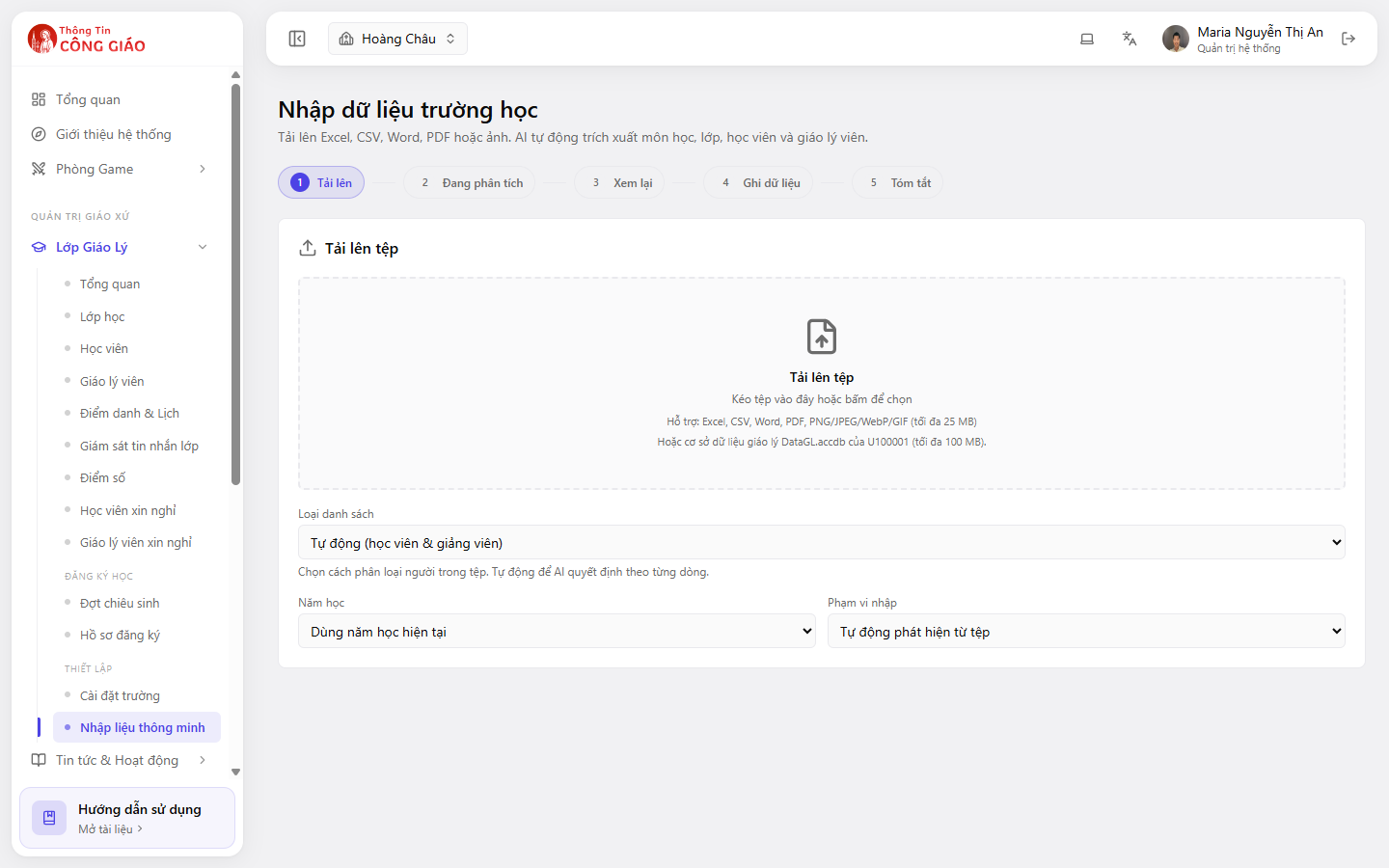
What file types it takes
- Excel, CSV, Word, PDF — up to 25 MB
- Images PNG, JPEG, WebP, GIF — a photo of a paper register works too, up to 25 MB
- Catechism database
DataGL.accdb— up to 100 MB
The five steps
Upload the file
Drag the file into the frame, or click to browse. Then set the three options below:
- List type — Automatic (students & teachers), or name one type explicitly
- School year — defaults to Use the current school year
- Import scope — Detect from the file automatically, or pick a specific class
I am stuck on this step
File rejected? Check the size (25 MB, or 100 MB for DataGL.accdb) and the format.
Still not working? Message the support team and attach a screenshot of what you see.
Analysing
A long document or a blurry photo takes longer. Do not close the tab while it is analysing.The system reads the file and extracts subjects, classes, students and catechists. This step runs on its own.
I am stuck on this step
Taking too long? The file may have too many pages, or the photo is too blurry. Split it up and upload it in parts.
Still not working? Message the support team and attach a screenshot of what you see.
Review
Compare what the system read against the original file. Fix wrong cells, delete rows that are not people. This is the step that matters most — a mistake here becomes a mistake in the system.
Write the data
Once the list is right, click to write. The system creates the records and assigns them to classes.
Summary
Read the report: how many rows were created, how many were duplicates, how many were skipped.
The Write the data step creates real records in the parish. Getting it wrong means fixing or deleting records one at a time. Import one class as a trial first, look at the result, then import the whole list.
Preparing a file that reads well
- One person per row, no merged cells
- A clear Full name column; add Date of birth to tell apart people with the same name
- Write class names exactly as they are in the system, or let the system detect them
- Remove page headers, signatures and notes at the bottom of the table
You are done when
- The Summary step shows the number of new rows you expected
- Opening the Học viên (Students) screen shows the imported children in the right class
Something went wrong?
The system missed some people
- The file has merged cells or several tables on one page — split it into simple single tables
- The photo is blurry or shot at an angle — retake it straight on with good light
- The list is inside an image pasted into Word — export that image and upload it on its own
After importing I have duplicates
See Handling duplicates.
I cannot see the Smart import menu
This section is Administrator-only.