Find and open a student record
- Do it on
- Computer (Dashboard)
- Time needed
- 2 minutes
- Before you start
- The right parish and school year selected
- When you finish
- You can open a child's record
Open the student list
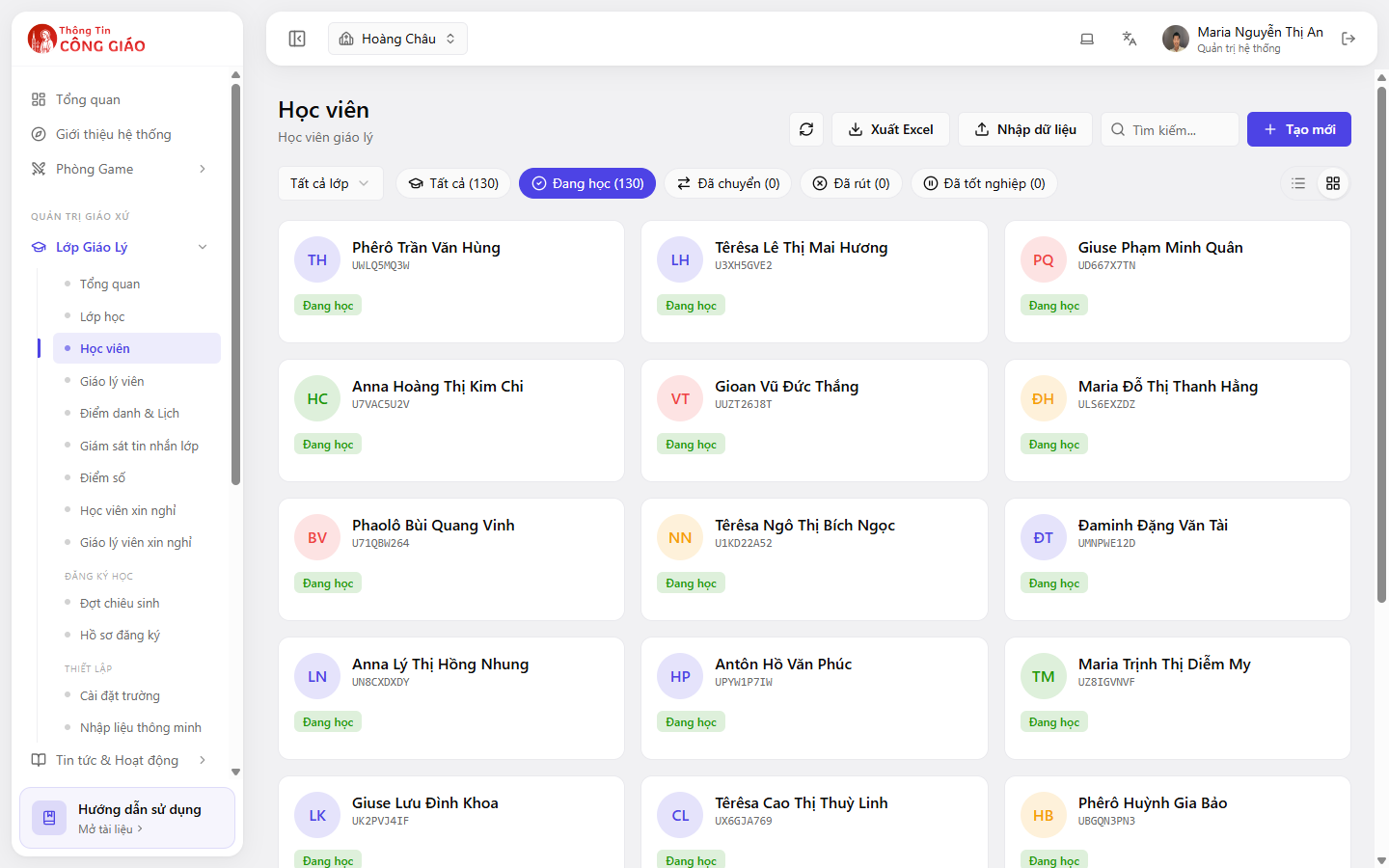
Go to Lớp Giáo Lý → Học viên (Catechism Classes → Students). Each card shows the name, student code and status.
Filter by class or status
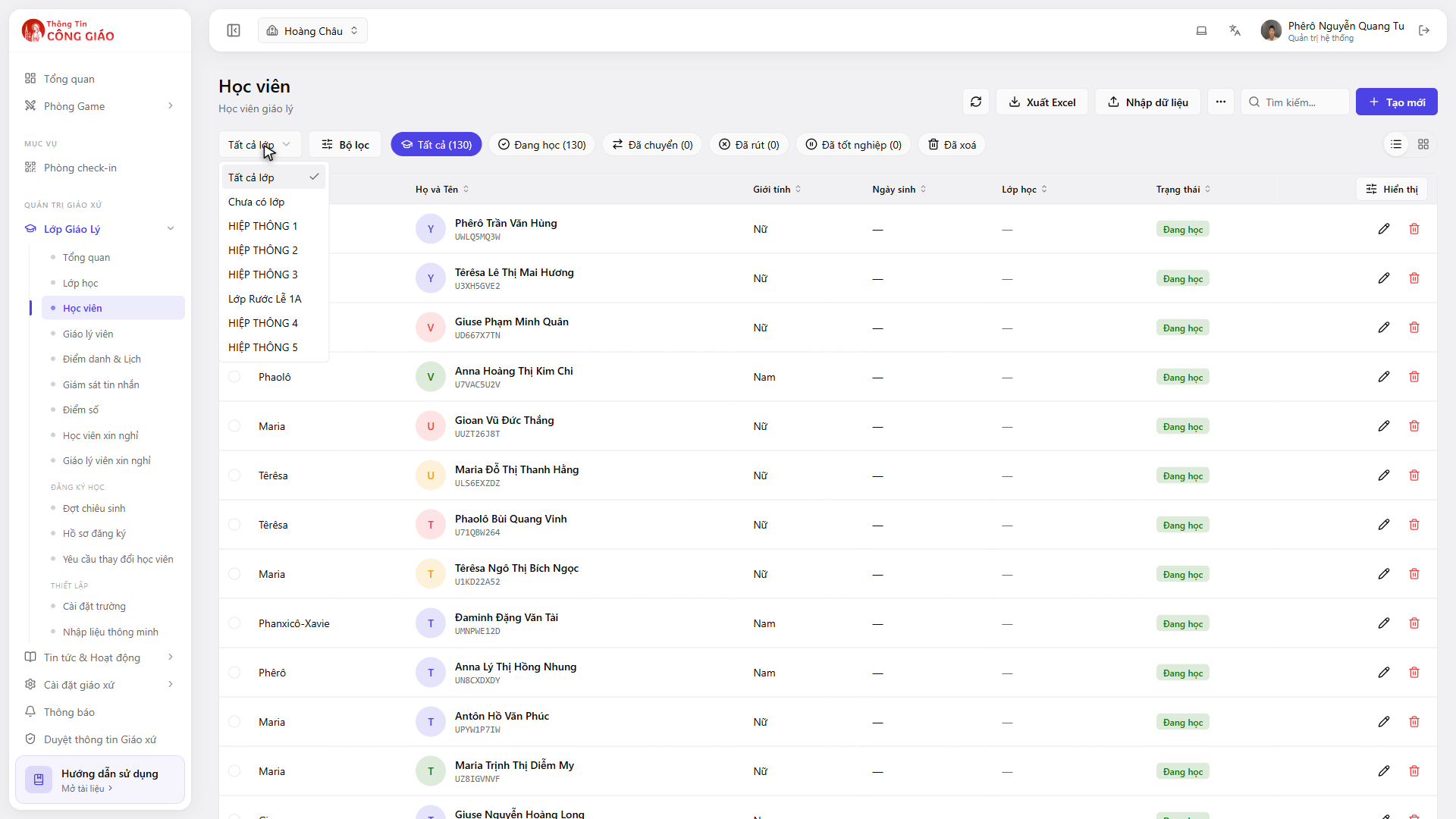
The number on each button tells you how many are in that status — e.g. Enrolled (130).Use All classes to filter to one class, or click a status button: All, Enrolled, Transferred, Withdrawn, Graduated.
I am stuck on this step
If every counter reads 0, check the School Year picker — you may be in a year with no data.
Still not working? Message the support team and attach a screenshot of what you see.
Search by name or code
Type into the Search box. The student code is the row of digits under the name on each card — useful when several children share a name.
The four student statuses
| Status | What it means |
|---|---|
| Enrolled | Still attending their current class; counts towards class capacity |
| Transferred | Moved to another class in the parish |
| Withdrawn | No longer attending; the record and history are kept |
| Graduated | Completed the programme for their level |
Exporting the list to Excel
The Xuất Excel (Export to Excel) button at the top downloads whatever is on screen, including the filters you applied. Use it to print a class list or reconcile with a paper register.
The exported file has the children's names and contact details. Only send it to people with responsibility on the catechism board — never post it in a public chat group.
You are done when
- You found a child by name
- You opened their record and can see which class they are in
Something went wrong?
I search a name and nothing comes up
- Drop the Vietnamese accents and type a shorter name, e.g. tuyet rather than Ánh Tuyết
- Set the status back to All — they may have withdrawn or graduated
- Check the Năm Học (School Year) picker
One child appears in two classes
Usually a double manual entry. Keep the record with attendance history and set the other to Withdrawn.