The catechist list
- Do it on
- Computer (Dashboard)
- Time needed
- 2 minutes
- Before you start
- Administrator or Coordinator rights to add anyone
- When you finish
- A complete list of teachers, on the right classes
Open the list
Go to Lớp Giáo Lý → Giáo lý viên (Catechism Classes → Catechists). Each card shows the name, status, how many classes they teach, their phone number and their start date.
I am stuck on this step
An empty list means no catechists have been added yet. Click Add catechist to start.
Still not working? Message the support team and attach a screenshot of what you see.
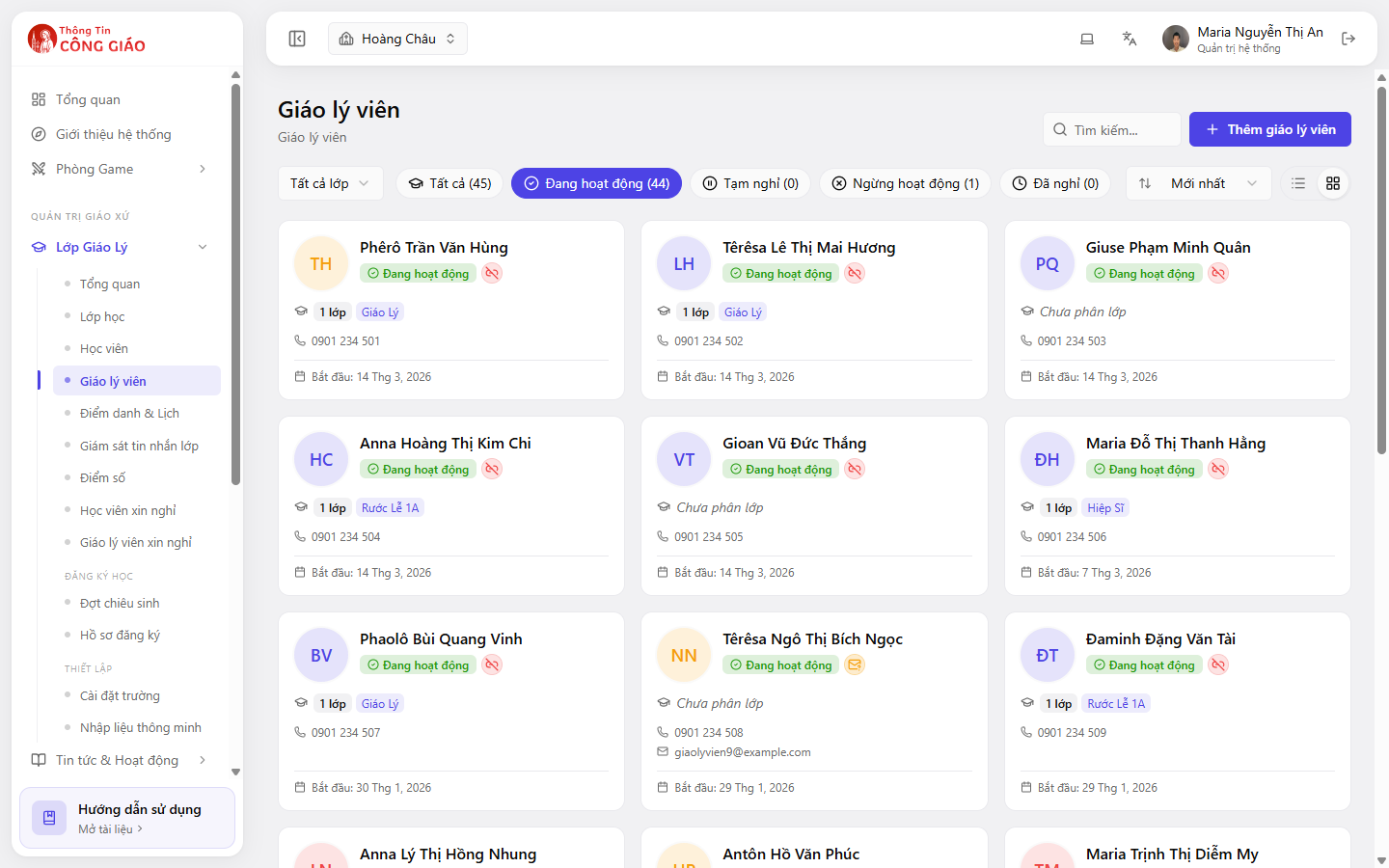
Filter by status or class
Four groups: Active, On break, Inactive, Left. The All classes box filters by the class they teach.
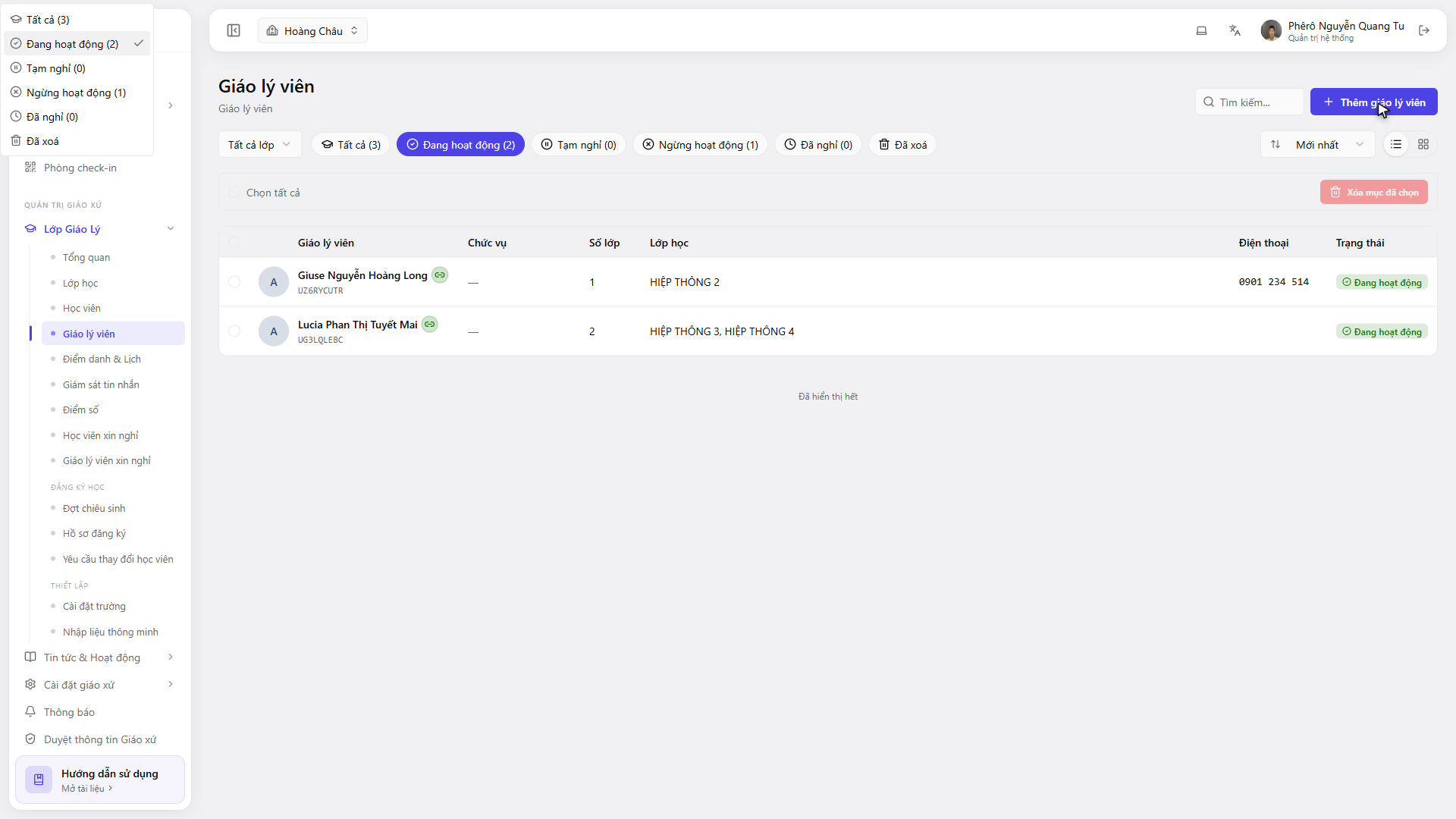
Add a new catechist
Click + Thêm giáo lý viên (Add catechist) and fill in the name and phone number. Then assign them to a class — see Catechists in a class.
Two markers worth watching on a card
- Not assigned — this person teaches no class yet, so they cannot take attendance
- No linked account (the broken-chain icon) — not tied to any login account yet
When someone stops teaching, set them to Left rather than deleting them. Deleting loses the record of who took attendance in past sessions.
You are done when
- Every active class has a catechist in charge
- No card is both Active and Not assigned
Something went wrong?
The list has odd names, abbreviations or duplicates
Old hand-entered data often looks like this. Correct the names to match official documents, and set the duplicates to Left.
I added someone but they cannot sign in
Adding here only creates a name on the list. For them to open the Dashboard, an Administrator has to grant rights under Cài đặt giáo xứ → Nhân sự (Parish settings → Staff).