Take attendance with QR
- Do it on
- A computer with a webcam, or a phone
- Time needed
- 3 minutes
- Before you start
- The session already created
- When you finish
- The present list is recorded for that session
Every student has their own QR code. Scanning it records that child against the session you have open.
A session has to exist first. See Create a session.
Open Attendance & Schedule
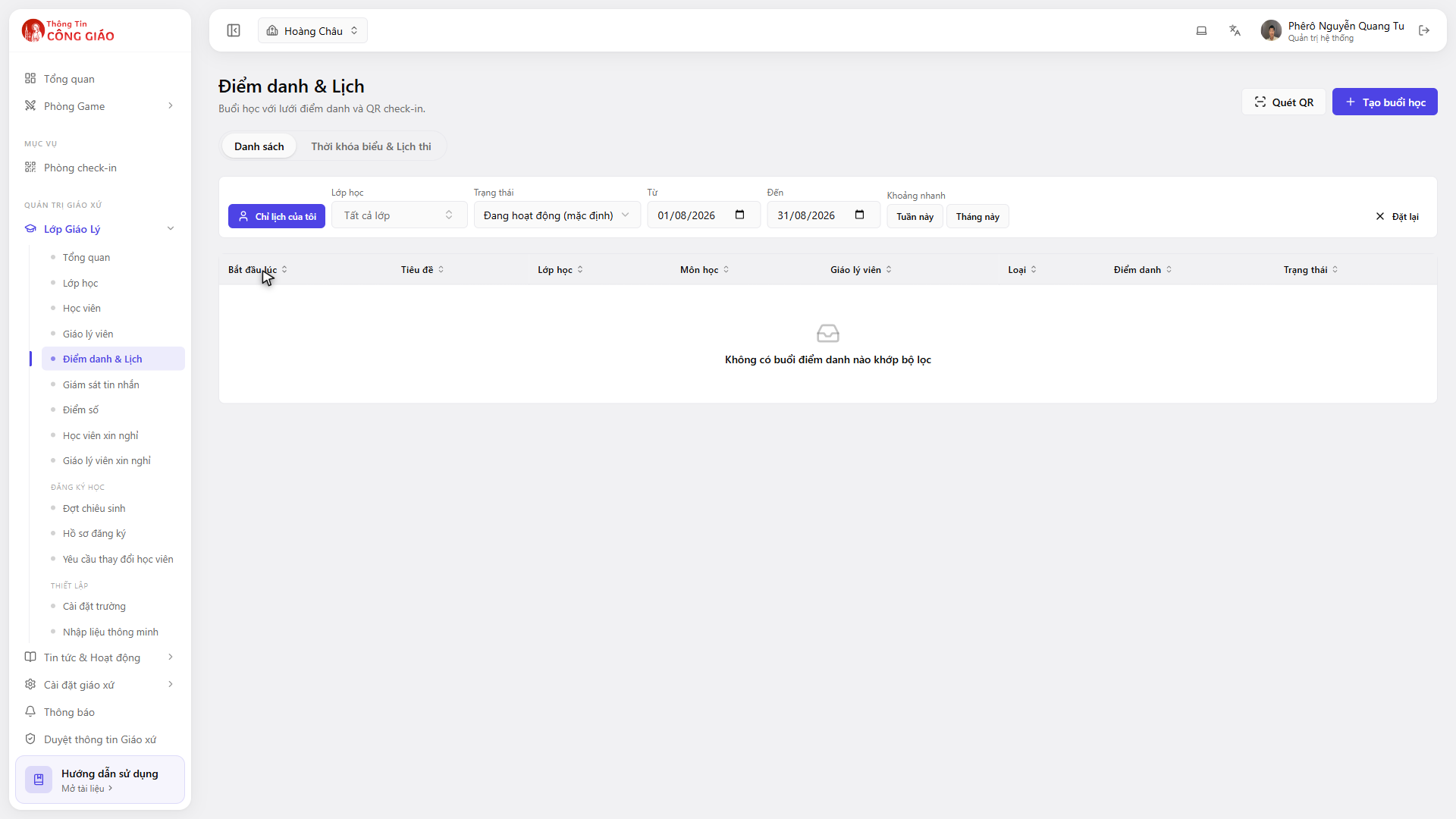
Go to Lớp Giáo Lý → Điểm danh & Lịch (Catechism Classes → Attendance & Schedule). The Quét QR (Scan QR) button is top right, next to Create session.
I am stuck on this step
Empty table? Click This month or clear the date range — the table filters by date and status.
Still not working? Message the support team and attach a screenshot of what you see.
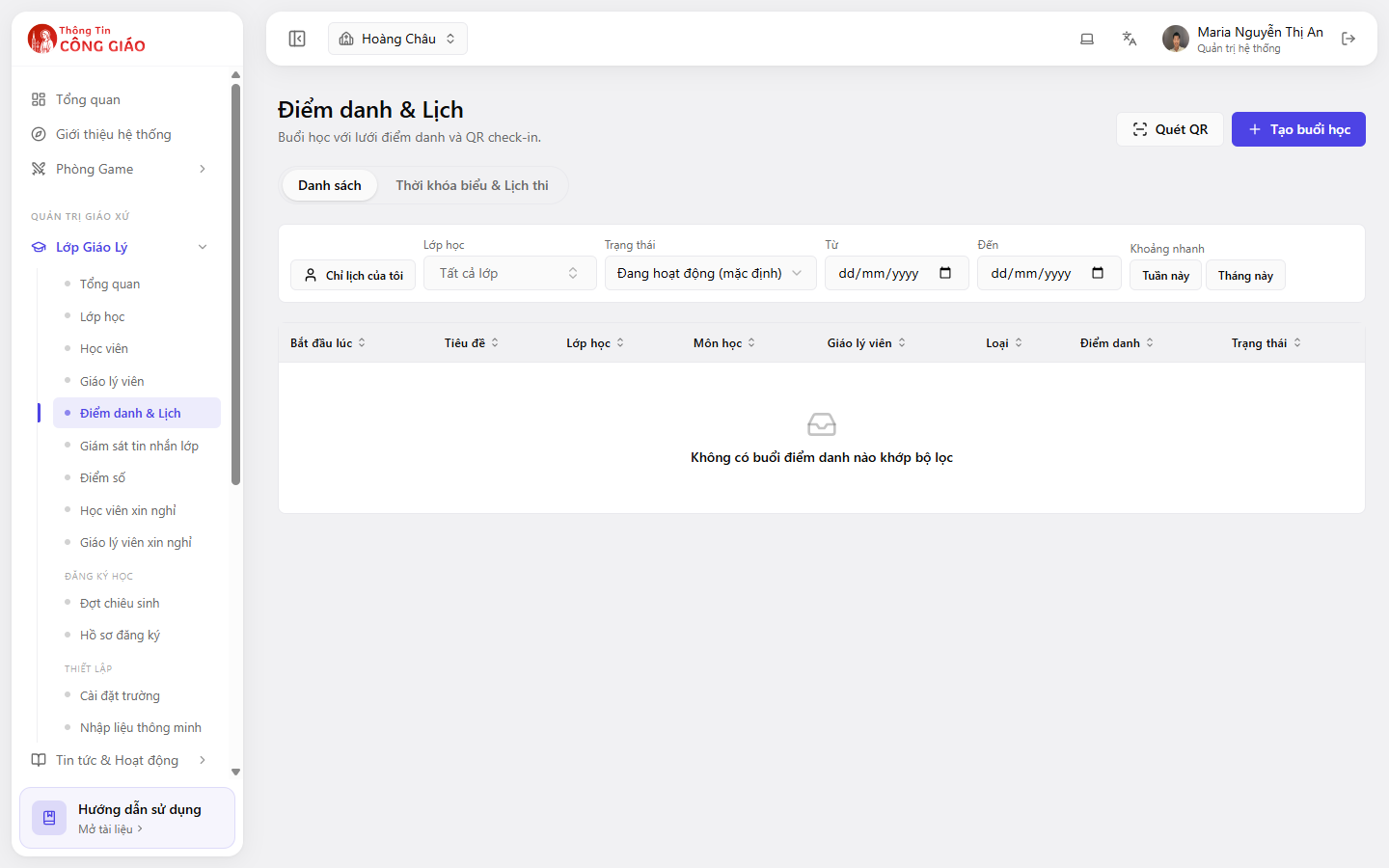
Pick the right session, then click Scan QR
Pick the wrong session and the attendance lands on the wrong day. Check the Starts at and Class columns.Find today's session in the table, open it, then click Quét QR (Scan QR).
I am stuck on this step
No session at all? Create one first — without a session there is nothing to take attendance against.
Still not working? Message the support team and attach a screenshot of what you see.
Allow camera access
The browser asks for permission to use the camera — click Allow. On a phone the app asks the same thing the first time.
Scan each child's code
Hold the QR code in the scan frame. Each successful scan shows the child's name and sets them to Present. Move on to the next child; nothing else to click.
You are done when
- The number Present matches the children actually in the room
- Reopening the session shows the saved attendance list
If scanning will not work, do it by hand
Open the session and change each child's status in the attendance grid. Use this when a child forgot their code, the computer has no camera, or the classroom has no reliable connection.
Something went wrong?
The camera does not open
- The browser is blocking camera access: click the padlock in the address bar to allow it again
- Another app is using the camera — close it and reload the page
- The computer has no webcam: use a phone to scan
It scans but says the student cannot be found
- That child is not in the class this session belongs to
- You have the wrong session open
- The QR code belongs to a different parish
If I scan the same child twice, do they count twice
No. The second scan simply updates that child's status within the same session.
The QR code is faded and will not scan
Add light, wipe the lens, bring the camera about a hand's width closer. If it still refuses, mark that child by hand.