Read and correct an attendance report
- Do it on
- Computer (Dashboard)
- Time needed
- 3 minutes
- Before you start
- A session that already has attendance
- When you finish
- A report that matches what happened in the room
Find the session you want
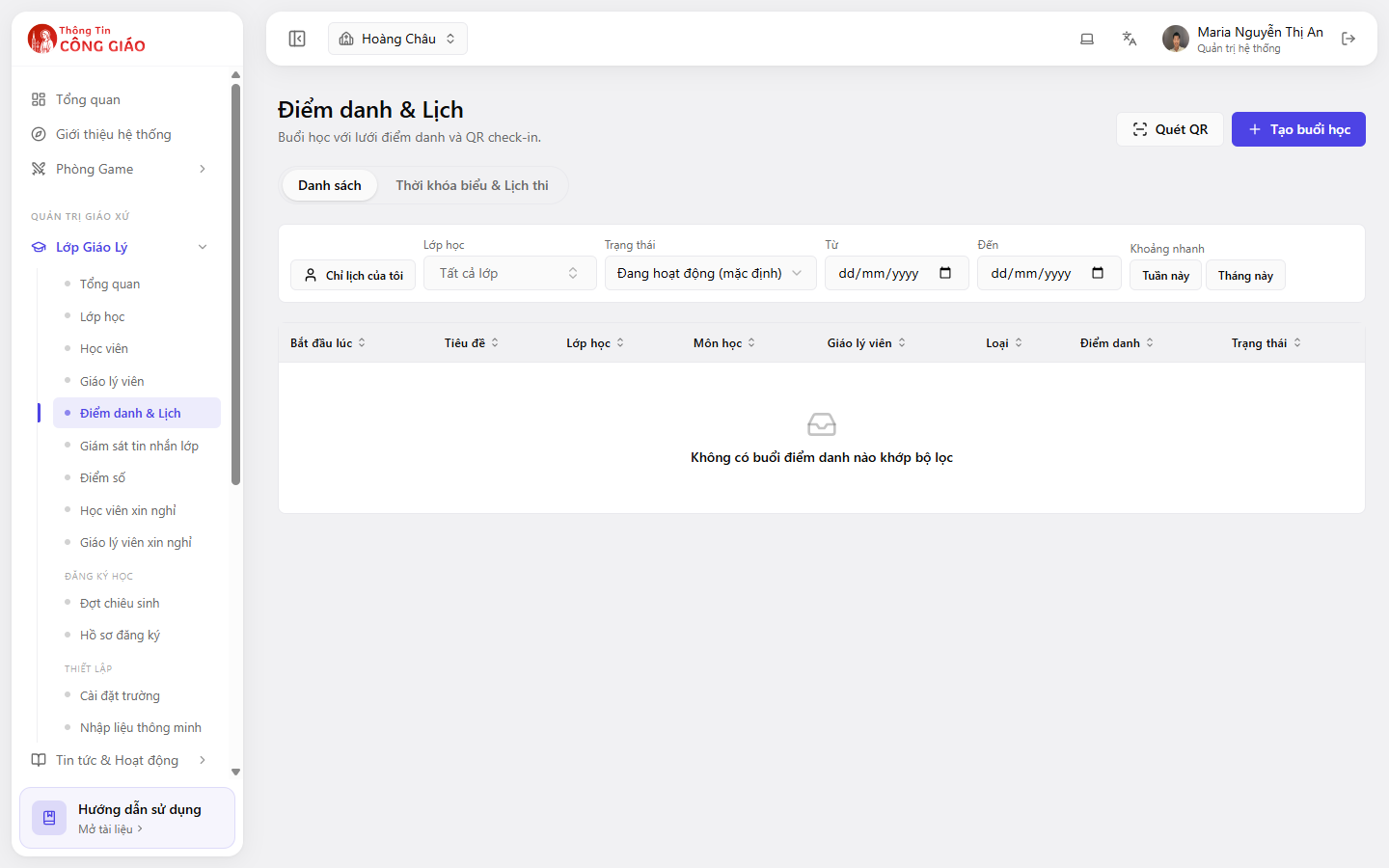
Go to Lớp Giáo Lý → Điểm danh & Lịch (Catechism Classes → Attendance & Schedule) and use the Class filter plus a date range (or click This week) to find the session.
I am stuck on this step
Nothing matches? Widen the date range, untick Only my schedule, or set Status to all.
Still not working? Message the support team and attach a screenshot of what you see.
Open the session's attendance grid
Click the Điểm danh (Attendance) column on the session's row. The grid lists every child with their current status.
Fix anyone absent or late
A child with an approved leave request should be Excused, not Absent — the end-of-term report treats them very differently.Change each child's status: Present, Late, Absent, Excused.
Add a note where it helps
Keep the reason short, e.g. “left 15 minutes early”, “late because of the rain”. Notes make it easy to answer a parent asking later.
Reading the figures on a class card
The class card on the Lớp học (Classes) screen shows the most recent session's figures: Present · Late · Excused · Absent, plus how many sessions have run. It is the fastest way to see which classes attend steadily and which have a lot of absence.
You are done when
- The four statuses add up to the number of enrolled students in the class
- No child is left with a blank status
Something went wrong?
I cannot change a status
- You are not a catechist of that class and do not have Administrator rights either
- The session has been closed or finished, per your parish's configuration
I took attendance against the wrong session, now what
Open the wrong session, set everyone back to blank or Absent, then take attendance again on the right session. If the wrong session was created by mistake, delete it.
Can I export the attendance report to a file
The student list exports via the Xuất Excel (Export to Excel) button on the Students screen. Per-session attendance reports are currently viewed directly on the Dashboard.