Create a school year
- Do it on
- Computer (Dashboard)
- Time needed
- 2 minutes
- Before you start
- Parish Administrator rights
- When you finish
- You can create classes for the new year
The school year is the time frame every piece of data hangs off: classes, students, sessions, grades. Without a school year you cannot create a class.
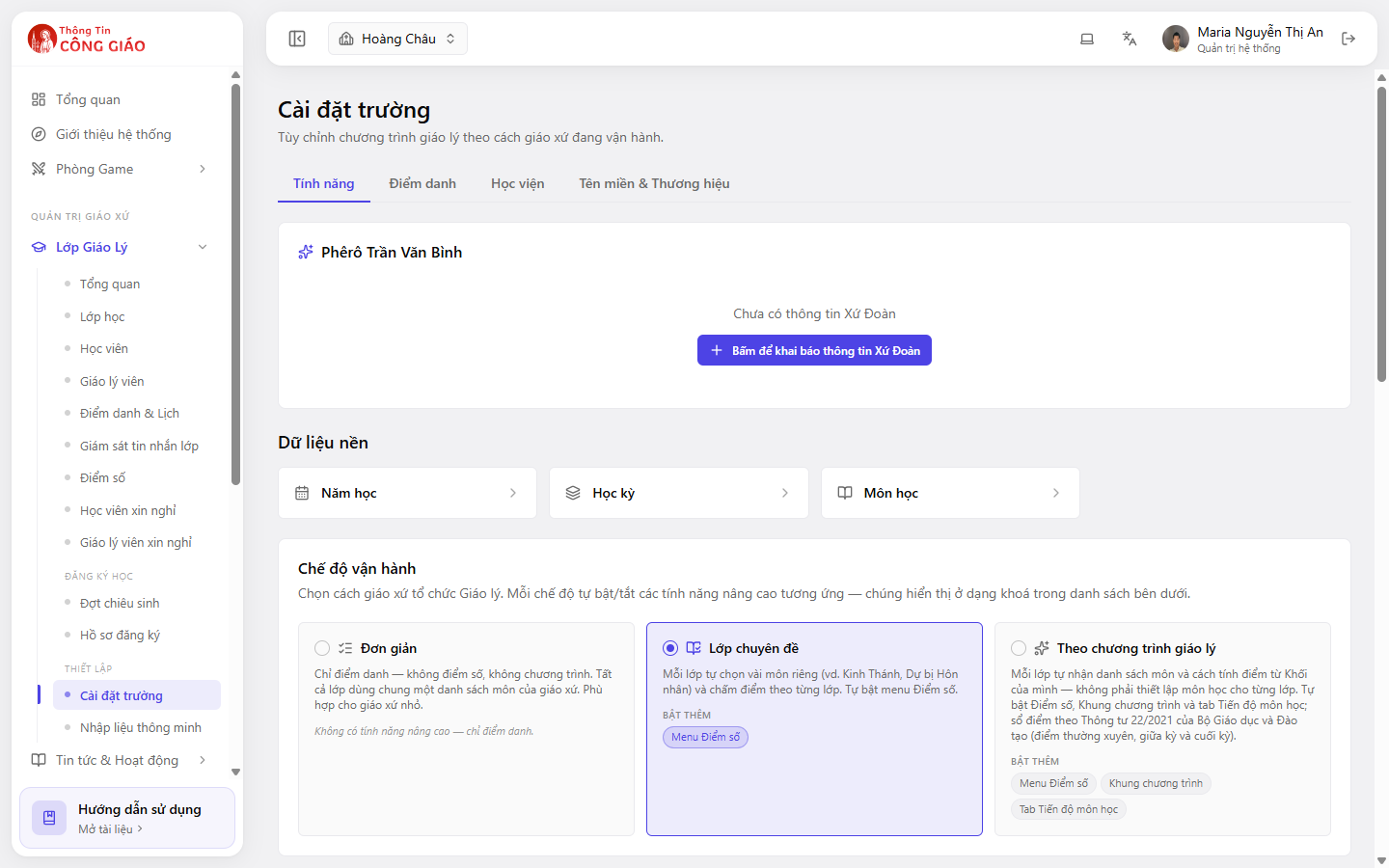
Go to School settings → Reference data → School year
Go to Lớp Giáo Lý → Cài đặt trường (Catechism Classes → School settings), scroll to the Dữ liệu nền (Reference data) block and click the Năm học (School year) box.
I am stuck on this step
Cannot open School settings? This section is Administrator-only.
Still not working? Message the support team and attach a screenshot of what you see.
Create the new year
Click create and enter it as 2025-2026. Use one convention for every year so the list stays readable.
Mark it as the current year
Only one year should be current. Several marked at once causes confusion when creating classes.Switch on the current-year option for the year now running. The system will preselect it whenever you open the Classes screen.
Check it on the Classes screen
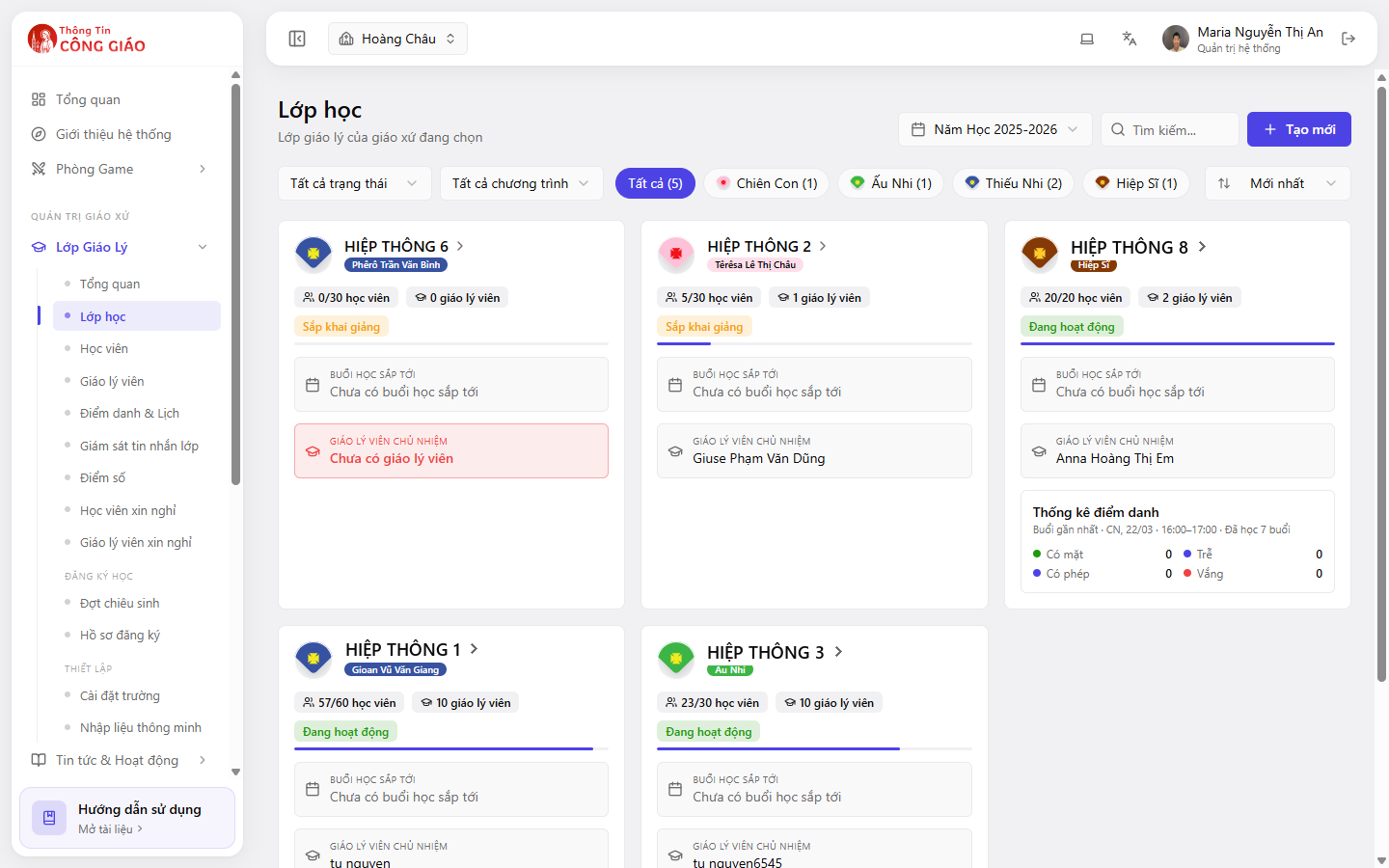
The Năm Học (School Year) picker on the right should now show the new year.
You are done when
- The new school year is in the list
- The Năm Học picker on the Classes screen preselects it
Something went wrong?
Will last year's classes disappear when I move to a new year
No. Old classes stay in the old year. Switch the Năm Học picker to see them again.
Are students carried over to the new year automatically
No. Create the classes for the new year and add students to them, or use Smart import to do it faster.