Request leave for your child
Done when: the app says Leave request submitted. The catechist will review and approve the request.
Send it before the lesson so the catechist has time to approve. Your child is not in the app yet? Link your child first.
- On your phone
- On the admin site
Open Menu and choose “Electronic Communication Book”
On the bottom bar, tap Menu, then choose Electronic Communication Book. With several children, pick the right child at the top first.
On the Overview tab, scroll to the end of Things to do. You see a row of quick buttons: My QR code, Request leave, Message catechist.
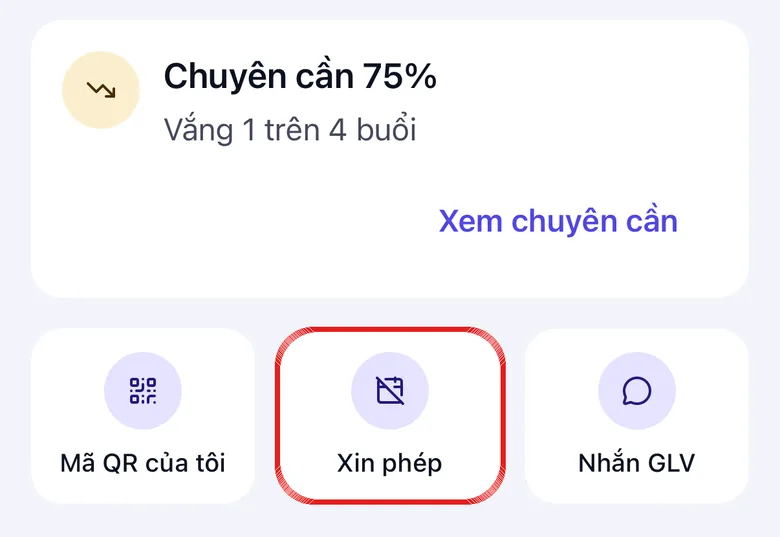
Tap the image to see it larger Tap “Request leave”
The New leave request screen opens with your child's name (Student) and Class filled in.
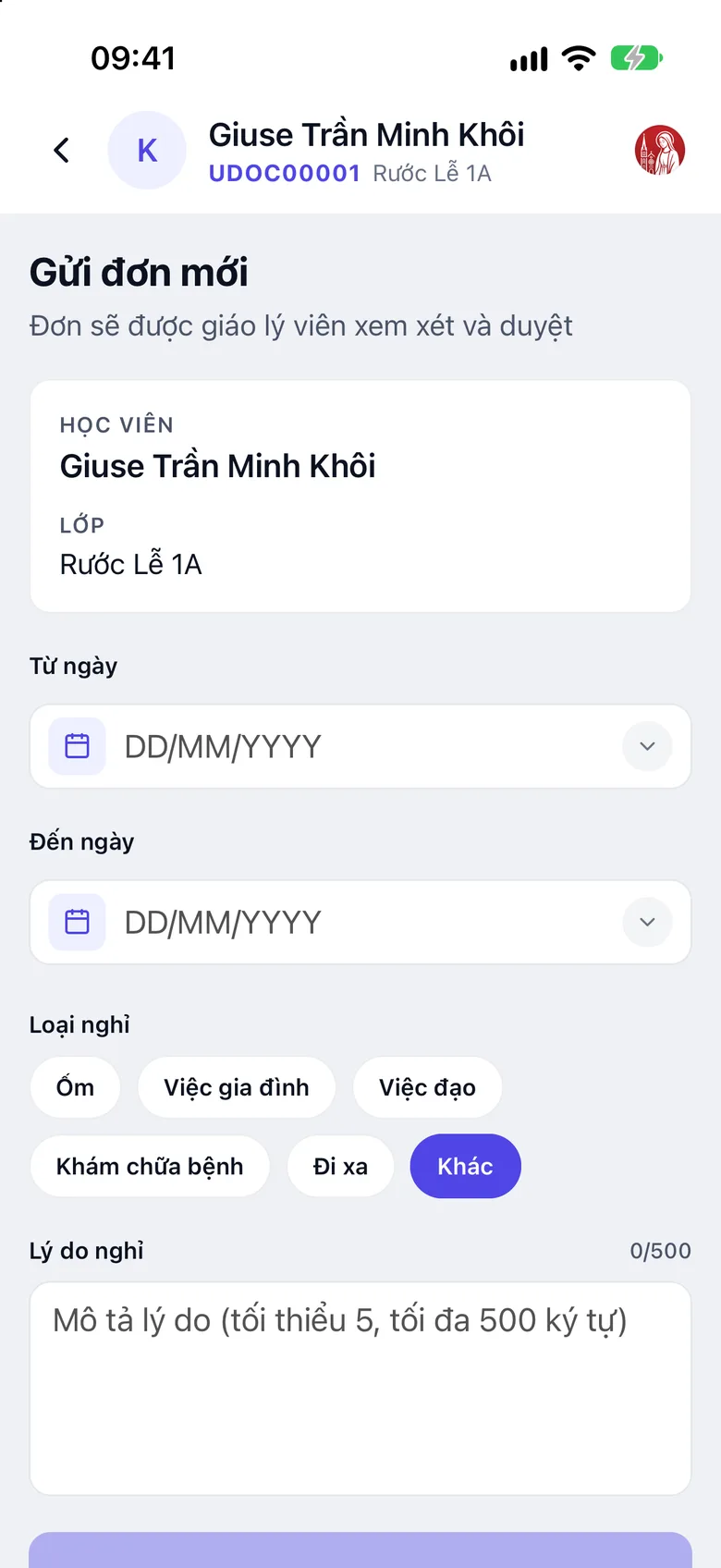
Tap the image to see it larger Pick the dates
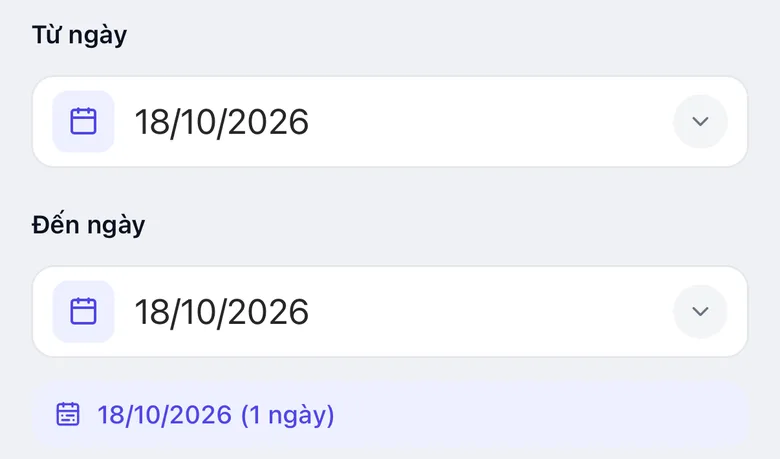
Pick From date and To date. For one lesson, use the same day for both. Below, the app shows the number of days, for example "(1 day)".
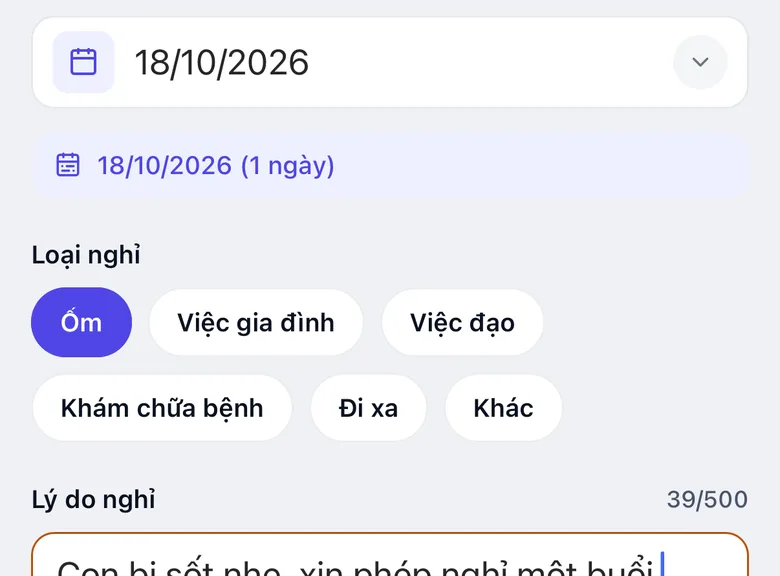
Tap the image to see it larger Pick the “Leave type” and write the “Leave reason”
Leave type has six choices: Sick, Family event, Religious, Medical, Travel, Other.
In Leave reason, describe it briefly: at least 5 and at most 500 characters.
If your child is in several classes, the app also asks Which class is this leave for? Pick the right one.
Tap the image to see it larger Tap “Submit leave request”
The app says Leave request submitted. The request is in your child's leave list.
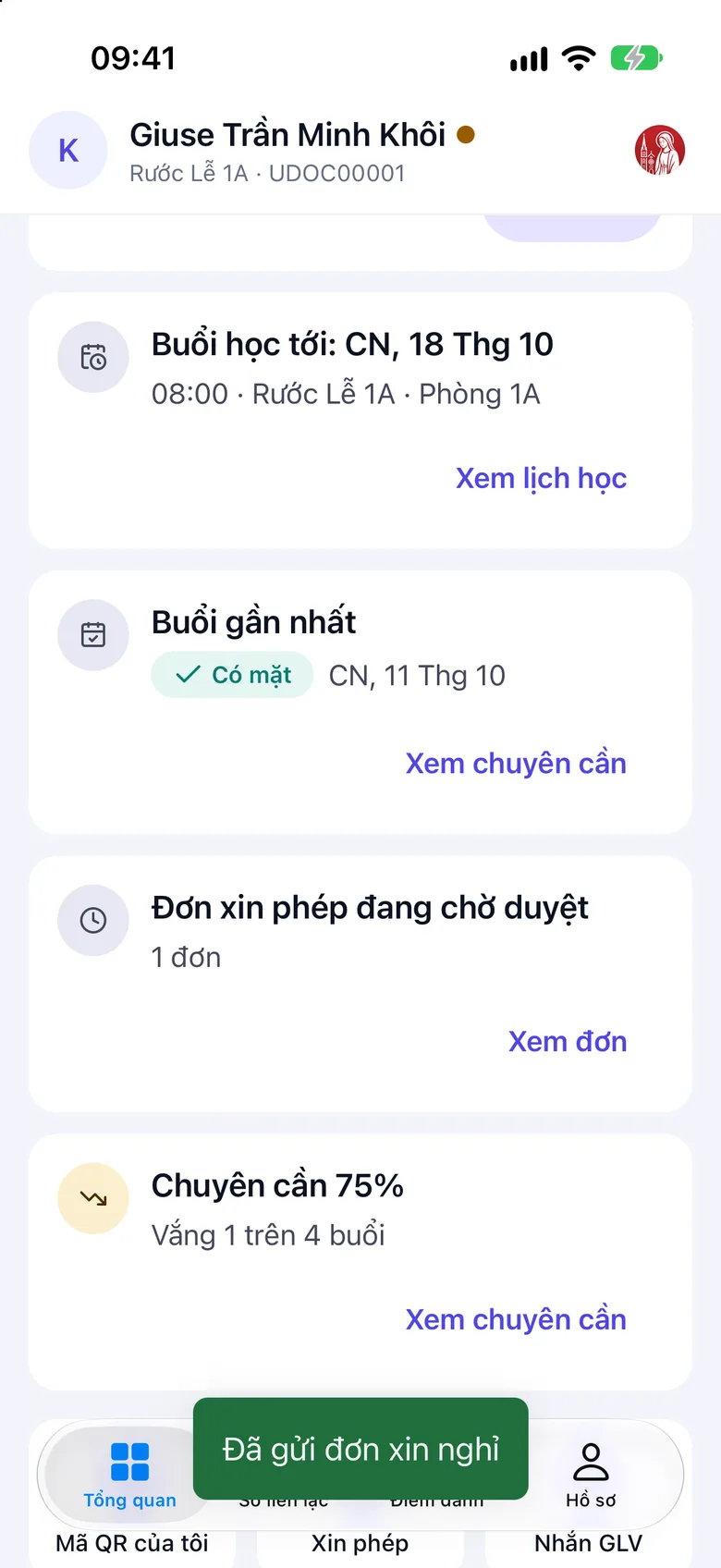
Tap the image to see it larger Follow the answer
When the catechist approves or rejects it, the Attendance tab shows Leave request updates: Leave request approved or Leave request rejected.
To see every request: Profile tab, Management section, Leave history.
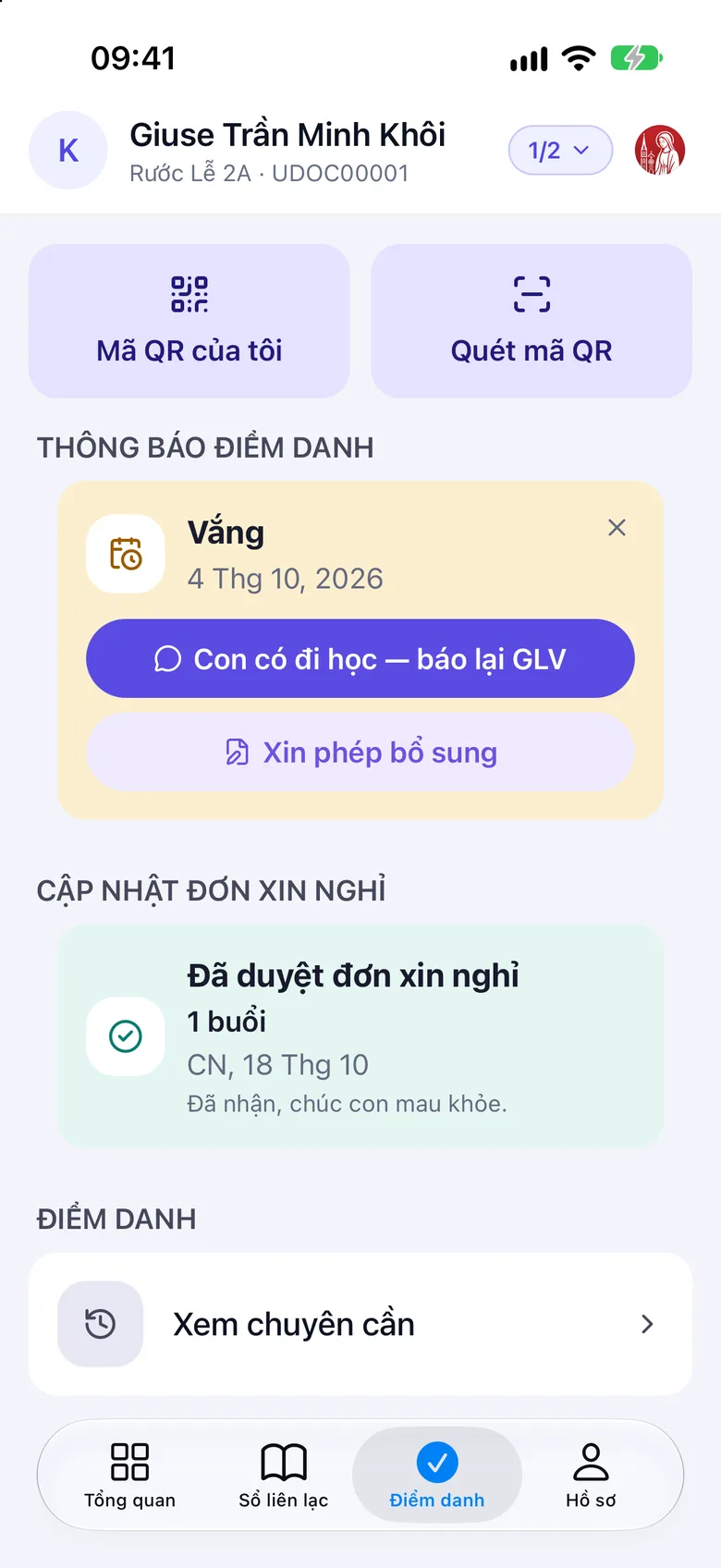
Tap the image to see it larger
Open “Contact book” → “Academic record”
Sign in to the admin site. In the left-hand menu, click the Contact book group, then Academic record. Choose your child at the top.
Open the “Leave requests” tab, click “Request leave”
In the Leave requests tab, click Request leave.
Fill in the request, click “Submit request”
Pick First day, Last day and Leave type. Add a note in Reason (optional), then click Submit request.
After the catechist approves
Once approved, your child's lessons on the leave days are marked "Excused" automatically in the class attendance sheet. The catechist does not have to do it by hand.
A "Present" or "Late" mark already recorded for that lesson stays as it is. If the request is rejected or cancelled, the attendance sheet goes back to how it was.
Something went wrong?
The request is pending and I want to withdraw it
Go to Profile → Management → Leave history, find the pending request, tap Cancel request and confirm. The app says Leave request cancelled.
I cannot see the “Request leave” button
No child is selected, or your account is not linked to a child. Follow Link your child. Still missing: see I can't find the item I need.
“Submit failed, please try again”
Check your connection and send again. The reason must have at least 5 characters.