Read your child's Communication Book
Done when: you can see your child's attendance, grades and homework in the Communication Book.
Your child is not in the Communication Book? Link your child first.
- On your phone
- On the admin site
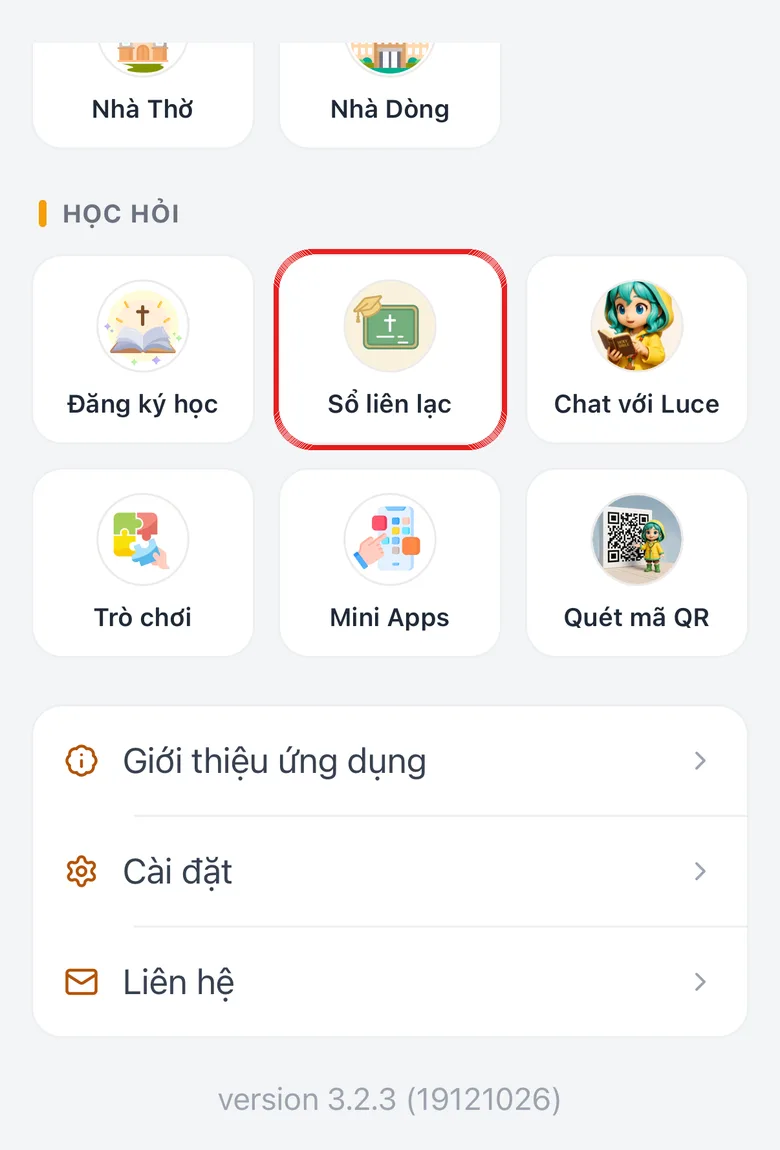
Open Menu and choose “Electronic Communication Book”
On the bottom bar, tap Menu, then choose Electronic Communication Book. You see four tabs on the bottom bar: Overview, Communication Book, Attendance, Profile.
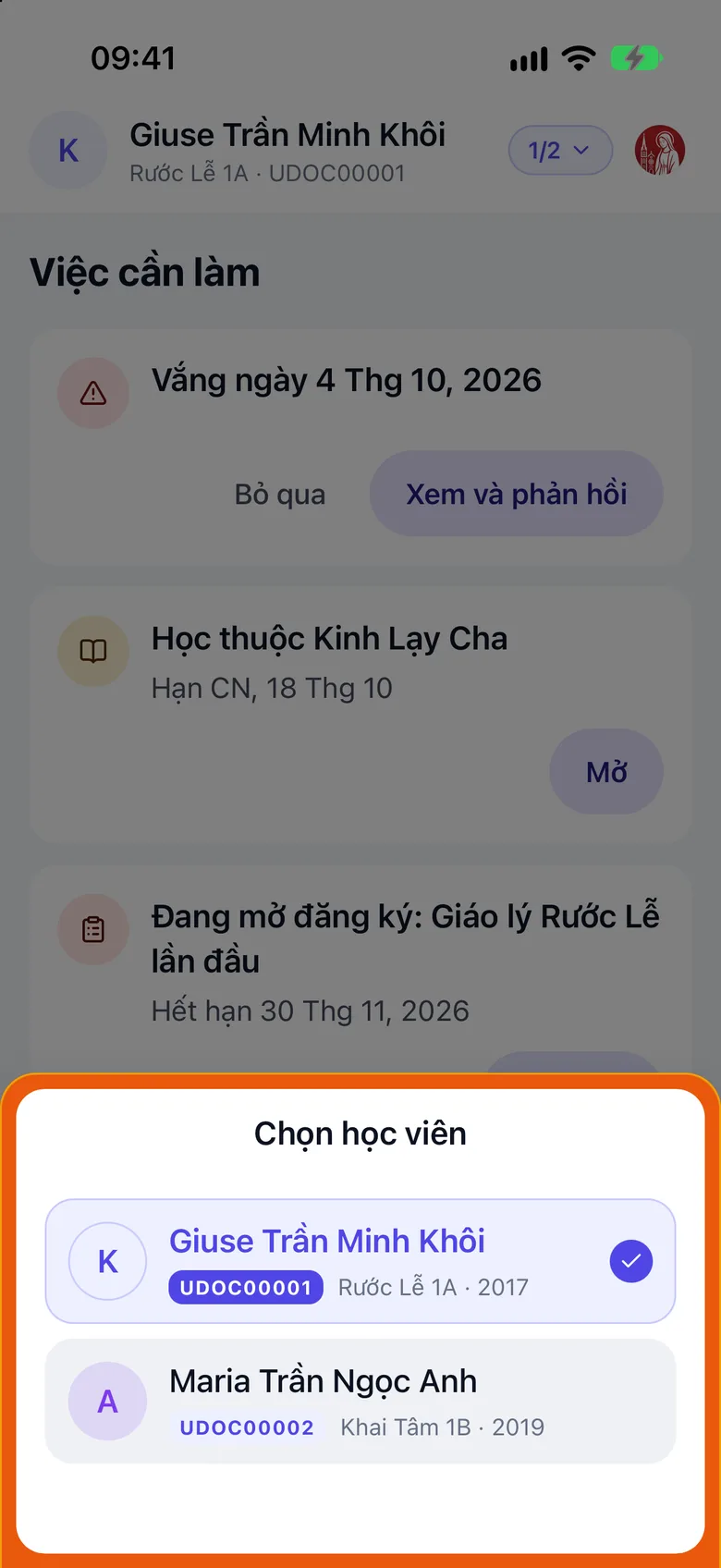
Tap the image to see it larger Choose a child (if you have several)
The child you are viewing is named at the top of the screen. Tap that name to switch to another child.
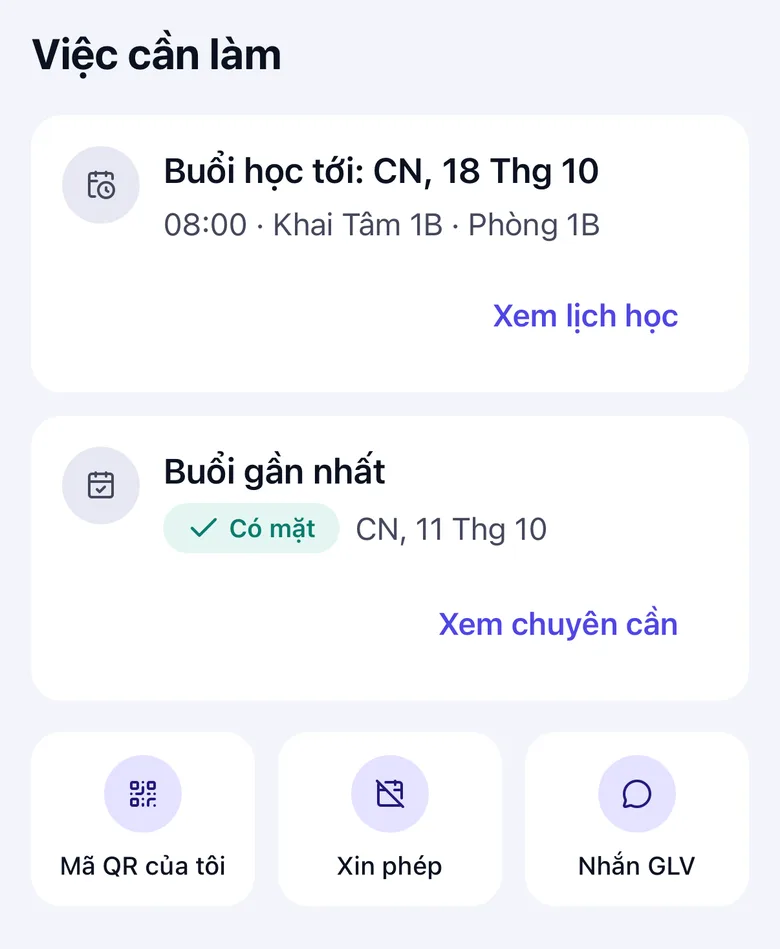
Tap the image to see it larger “Overview” tab: see “Things to do”
The Overview tab lists your child's Things to do. Below it are three quick buttons: My QR code, Request leave, Message catechist.
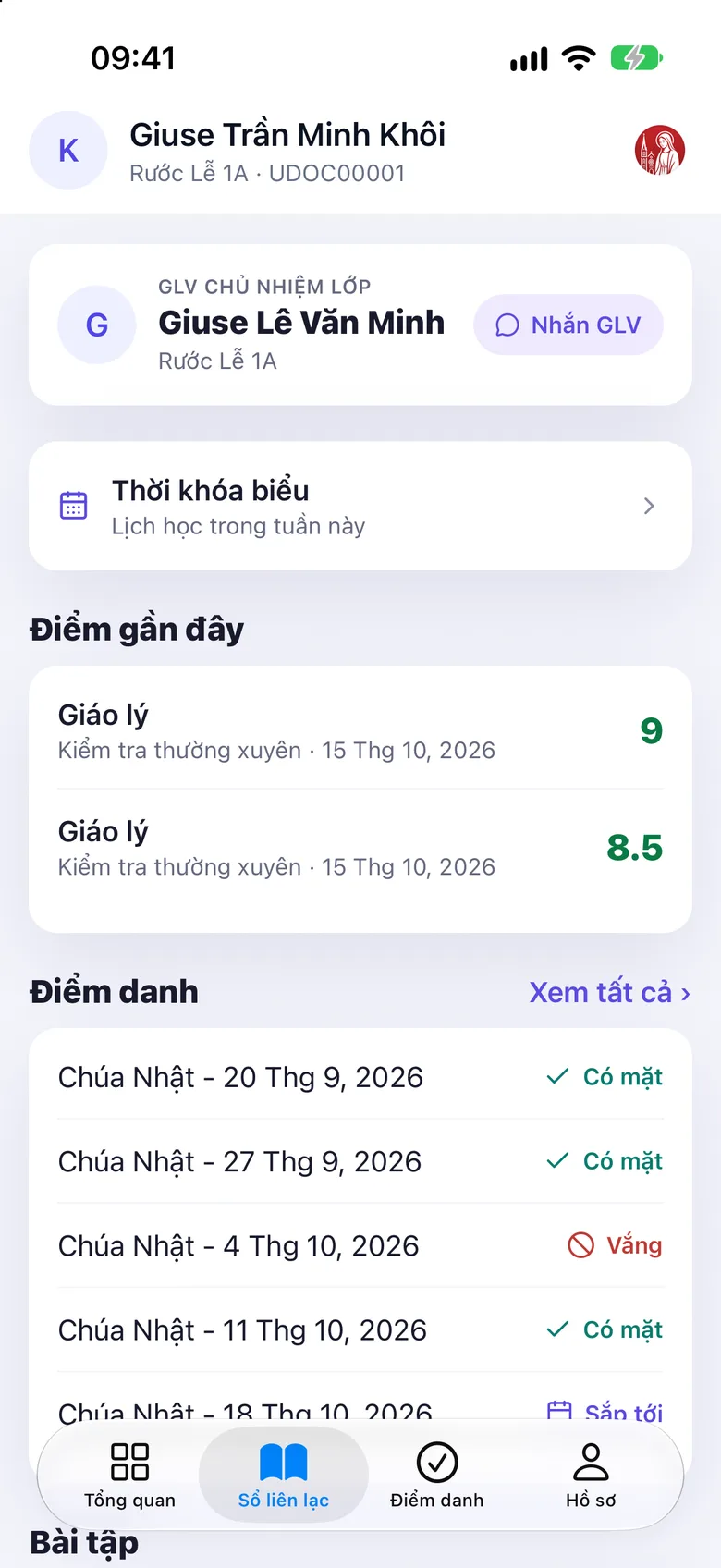
Tap the image to see it larger “Communication Book” tab: grades, attendance, homework
The top of the Communication Book tab is the homeroom teacher card, with a Message catechist button. Next come Timetable, Recent grades, Attendance and Homework. Tap View all in a section to see everything.
Further down you may also see Materials, Subject Progress, Fees and Transcript. An item the parish has not turned on is not shown.
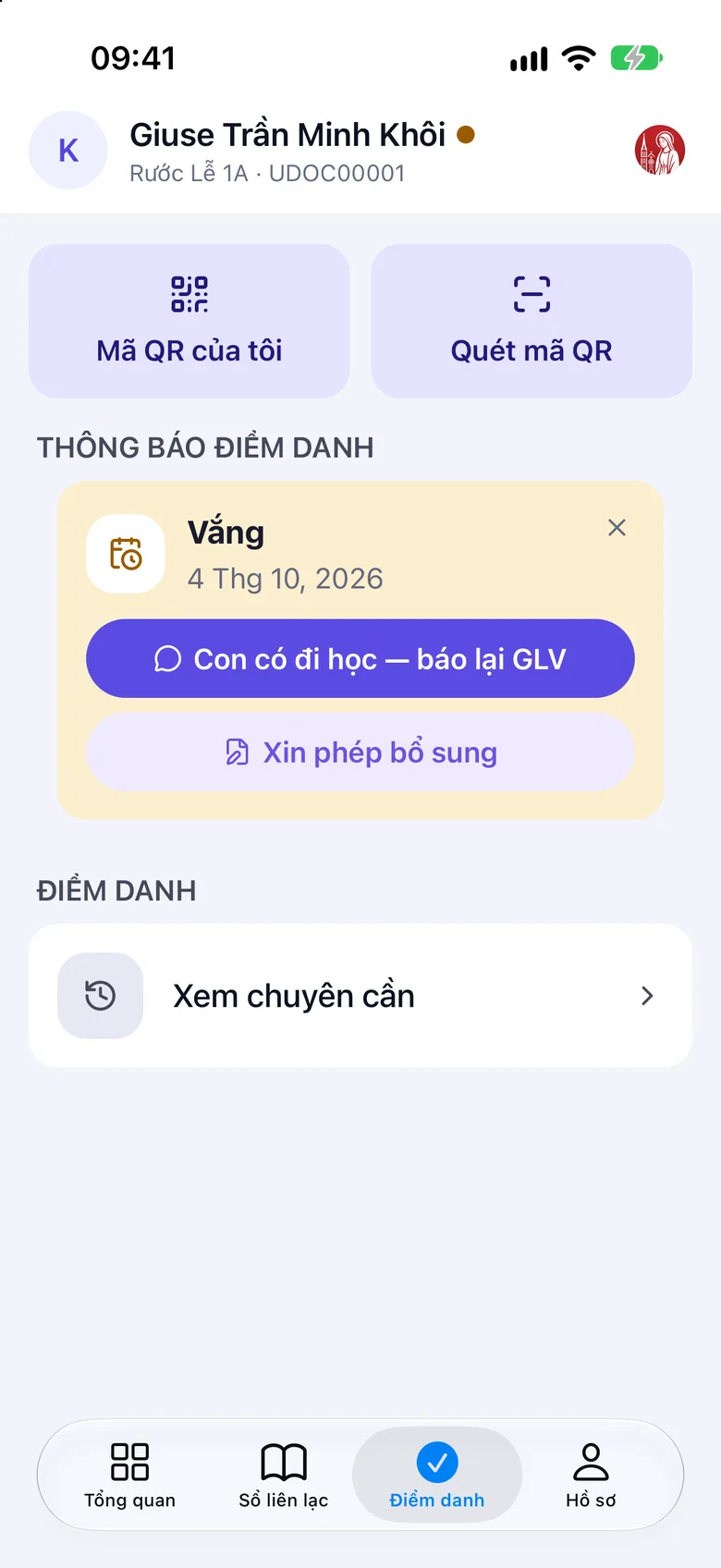
Tap the image to see it larger “Attendance” tab: attendance and QR codes
The Attendance tab has three buttons: My QR code (show it to the catechist at the classroom door), Scan QR Code (your child scans the lesson's code to check in) and View attendance.
When your child is marked absent, Attendance notifications appears here. When a leave request has an answer, Leave request updates shows Leave request approved or Leave request rejected.
Tap the image to see it larger
Open “Contact book” in the left-hand menu
Sign in to the admin site. In the left-hand menu, click the Contact book group, then Academic record.
Choose your child and a tab
Choose the child at the top of the page. The tabs are Overview, Schedule, Attendance, Leave requests, Grades, Homework. A tab the parish has not turned on is not shown.
Something went wrong?
My child is not shown
Your child is not linked to your account yet. Follow Link your child to your parent account.
No grades or attendance yet
Grades appear after the catechist enters them. Attendance appears after the catechist takes attendance. Pull the screen down to reload.
My child cannot use “Scan QR Code”
This button is for scanning a lesson's code. Allow the app to use the camera when asked. The catechist can also scan your child's My QR code.