Link your child to your parent account
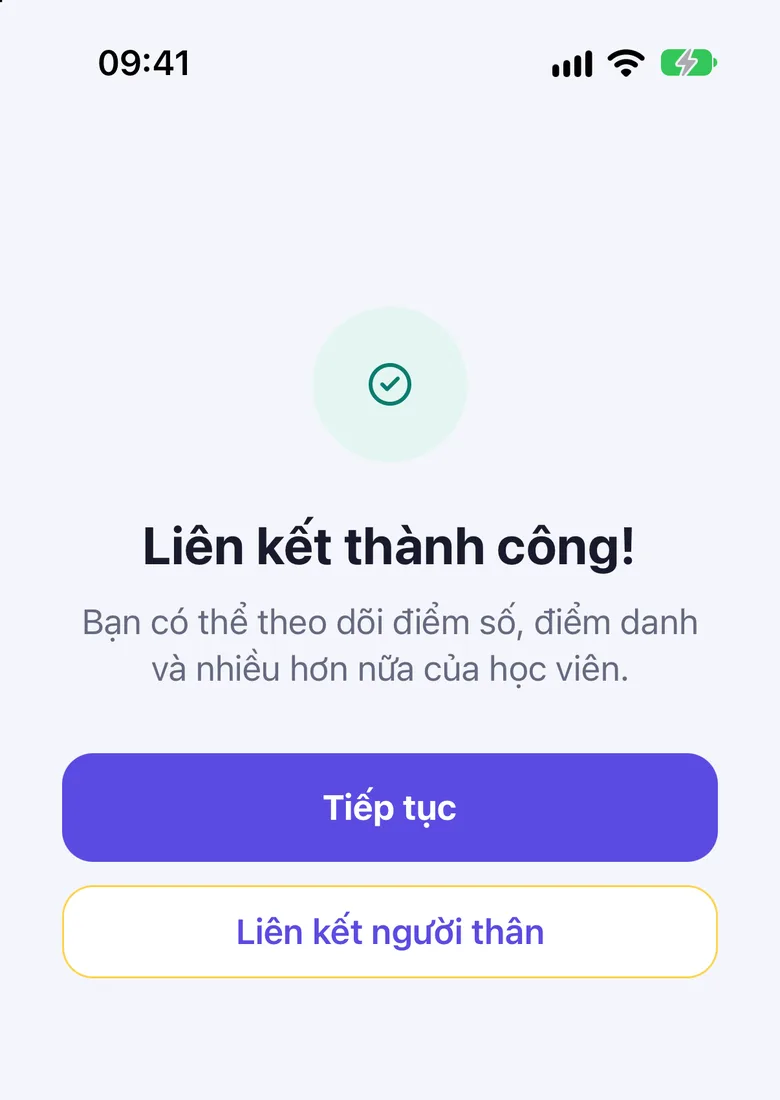
Done when: the screen says Successfully Linked! and your child appears in the Communication Book.
You need your child's student code. The catechist or the catechism office of the class gives it to you. If you do not have it yet, ask them first, then come back to these steps.
- On your phone
- On the admin site
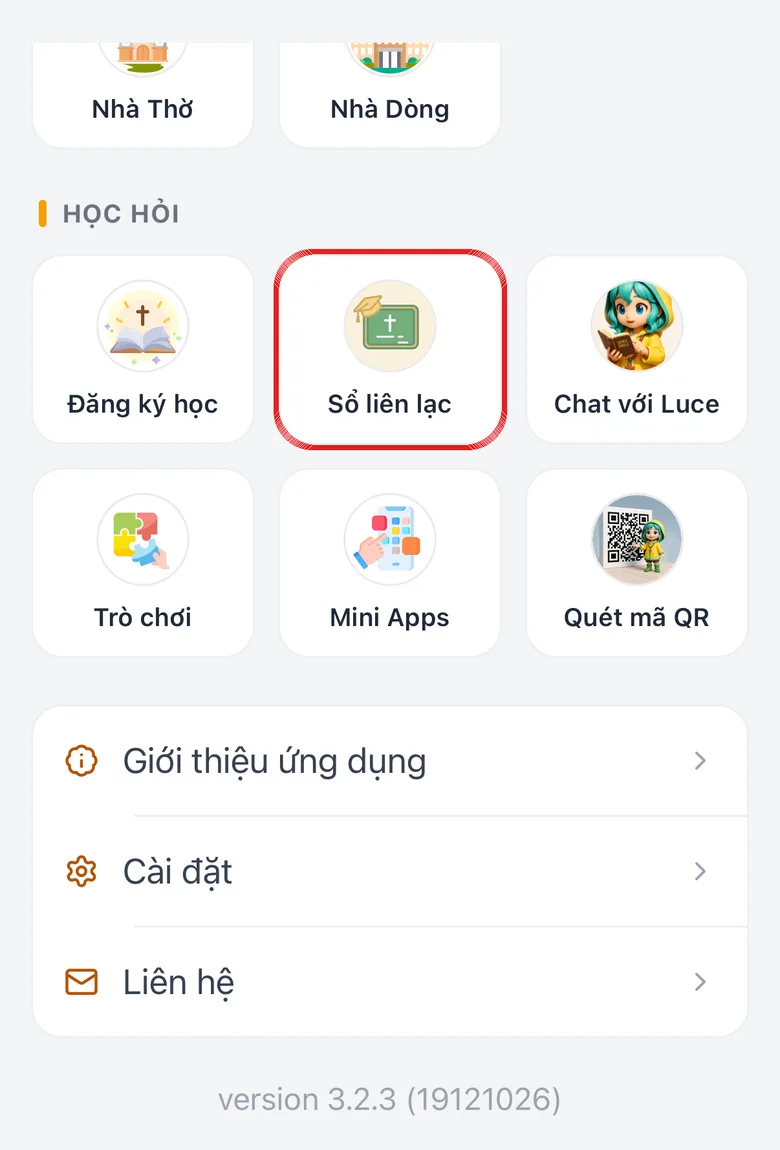
Open Menu and choose “Electronic Communication Book”
On the bottom bar, tap Menu, then choose Electronic Communication Book.
If no child is linked to your account yet, the Link Student Account screen opens straight away. Skip step 2.
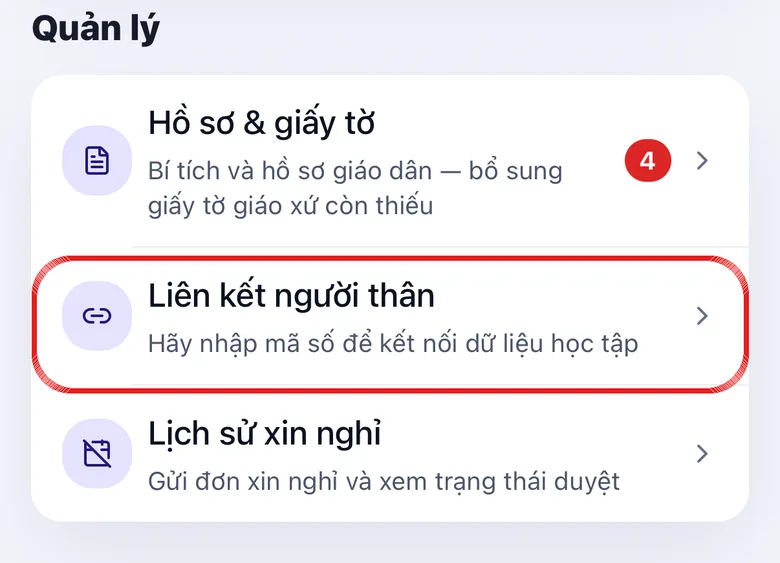
Tap the image to see it larger Already have a child? Open “Profile” and choose “Link a relative”
Tap the Profile tab on the bottom bar. Scroll to Management and tap Link a relative.
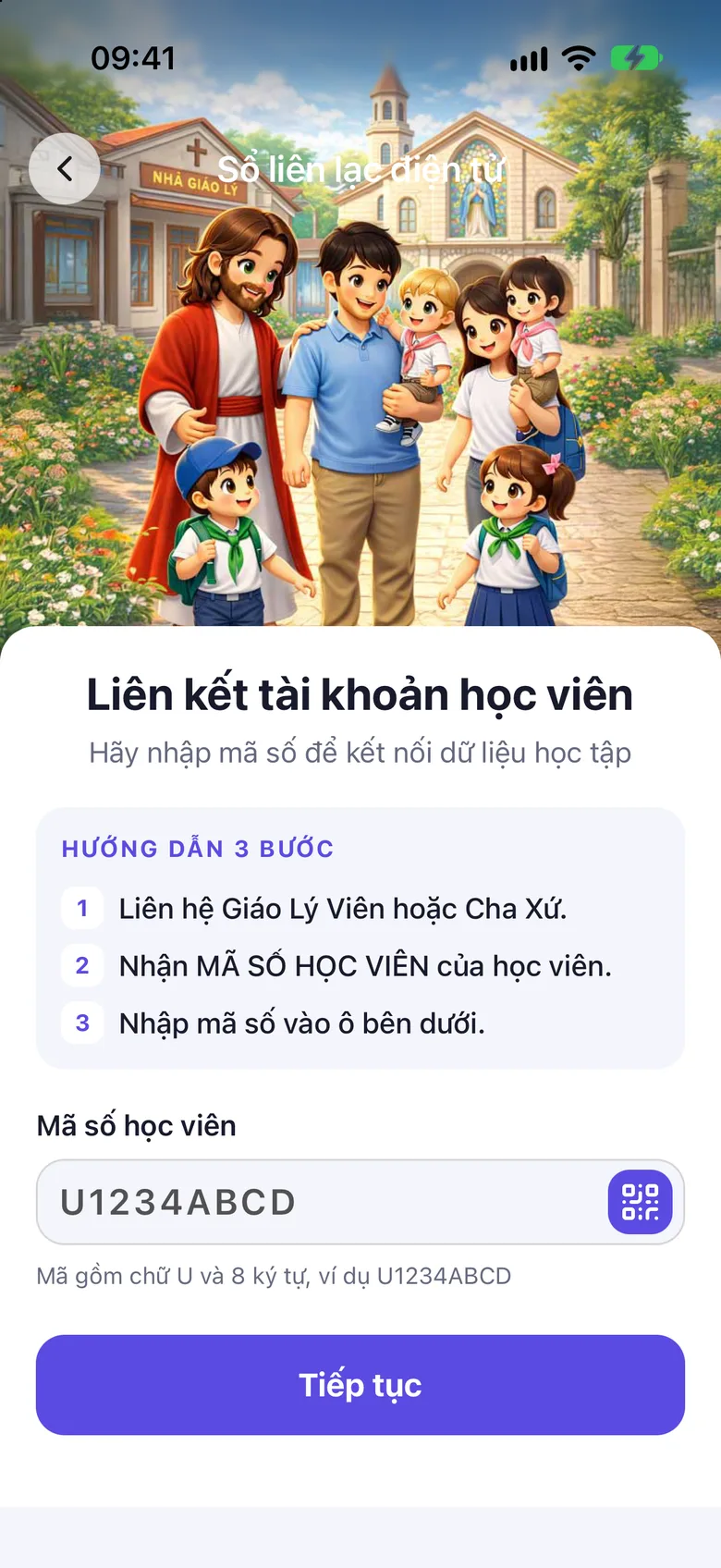
Tap the image to see it larger Enter the “Student Code”, tap “Continue”
Type the code in the Student Code field. If your child's card has a QR code, tap QR Scan and scan it instead of typing.
Tap Continue.
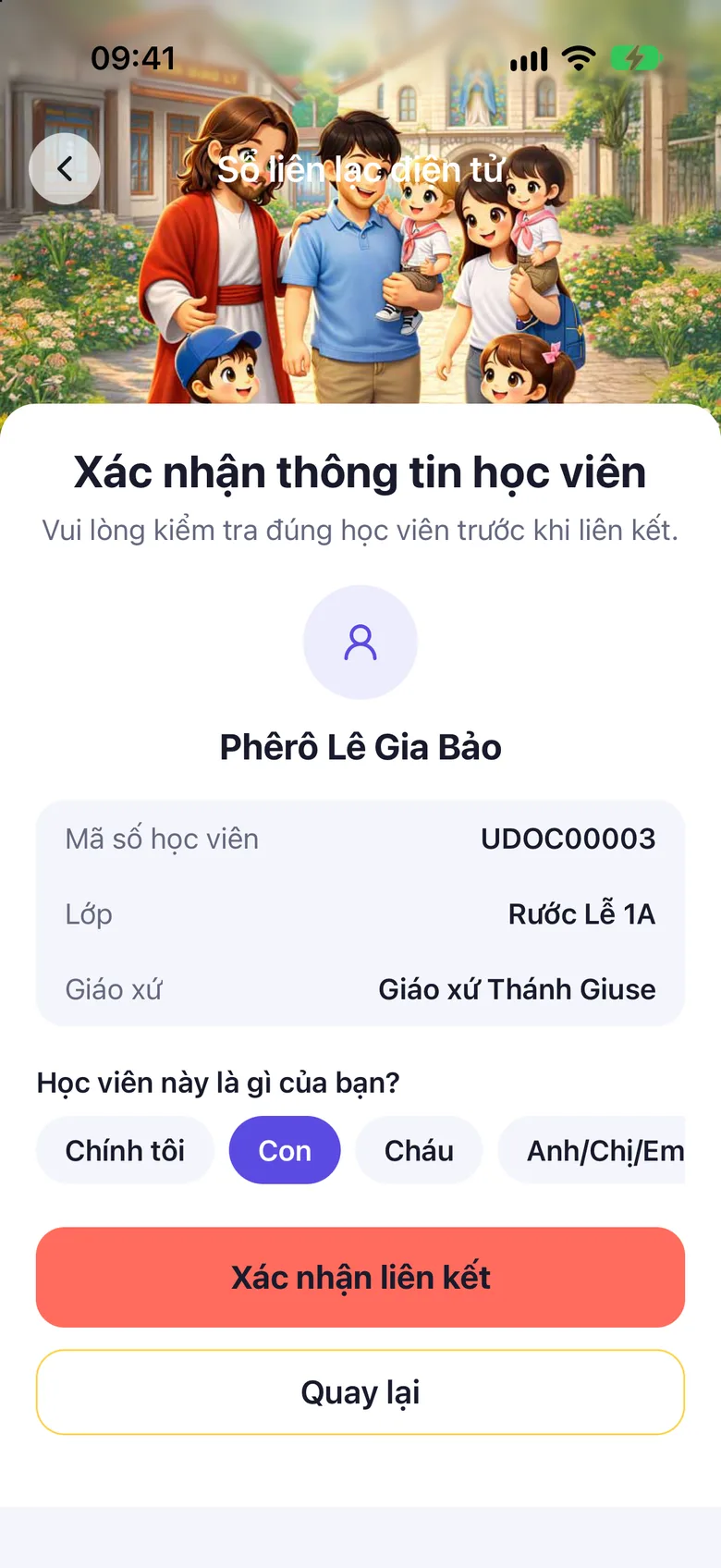
Tap the image to see it larger Check it is the right child, pick the relationship, tap “Confirm Link”
The Confirm Student Info screen shows Student Code, Class and Parish. Compare them with your child.
Under Who is this student to you?, pick one. You cannot link until you do.
Tap Confirm Link.
Tap the image to see it larger See “Successfully Linked!”
Tap Continue. Your child appears in the Communication Book. With two or more children, choose the child at the top of the screen.
Tap the image to see it larger
Open “Contact book” in the left-hand menu
Sign in to the admin site. In the left-hand menu, click the Contact book group.
Open “Link a child”
If no child is linked yet, the page opens the Link a child screen. It reminds you to get the student code from the parish catechism office.
Enter the “Student code”, click “Find the child”
The code is printed on your child's card, under the QR square. You can also paste the QR link.
Pick “This learner is my”, click “Link this child”
The page asks Is this the right child? Check the name and class, choose the relationship in This learner is my, then click Link this child.
Something went wrong?
It says “Invalid student code. Please check and try again.”
Retype each character and tell the number 0 from the letter O. The code is printed on your child's card. If it still fails, ask the catechist or the catechism office of the class to confirm the code.
I do not have a student code yet
Ask the catechist or the catechism office of the class. They issue the code.
I linked my child but still cannot see them
Pull the screen down to reload. With several children, make sure the right one is chosen at the top. Still nothing: see I can't find the item I need.