Register your child for catechism
Done when: your child's application is in My applications, waiting for the catechism team to review it.
Have ready your child's full name and date of birth, the sacraments your child has received, and any documents the parish asks for.
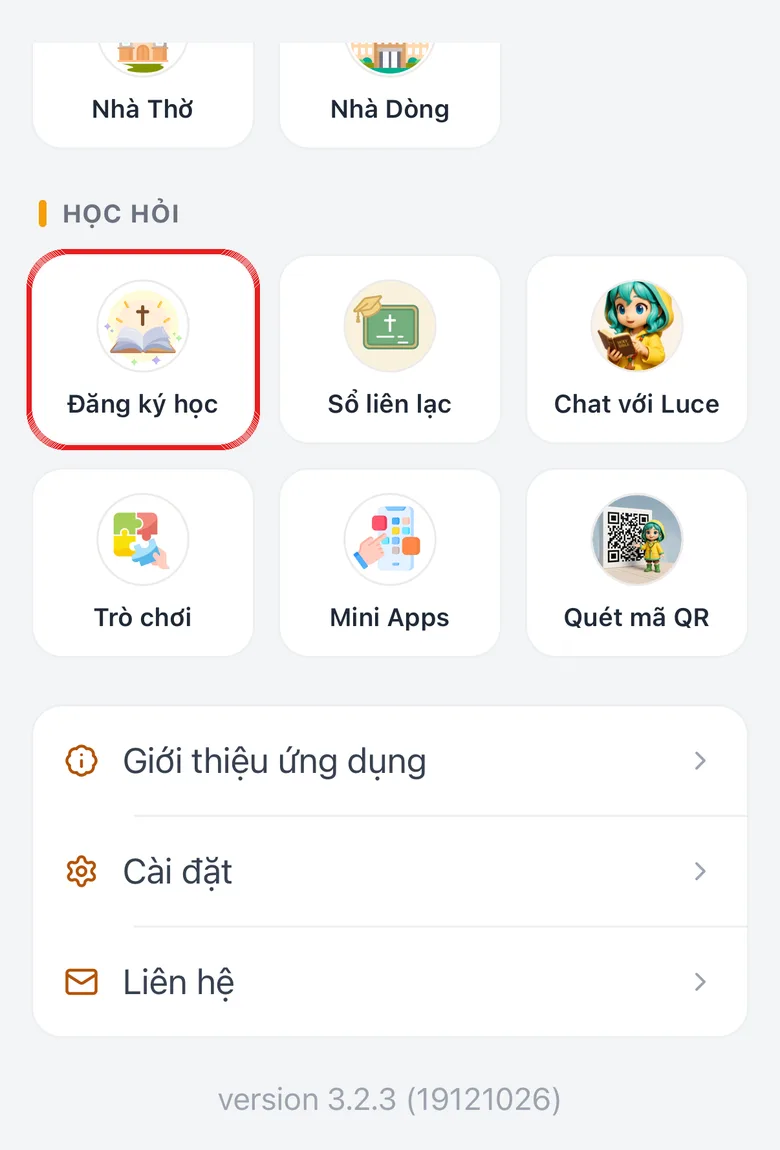
Open Menu and choose “Catechism Enrollment”
On the bottom bar, tap Menu, then choose Catechism Enrollment.
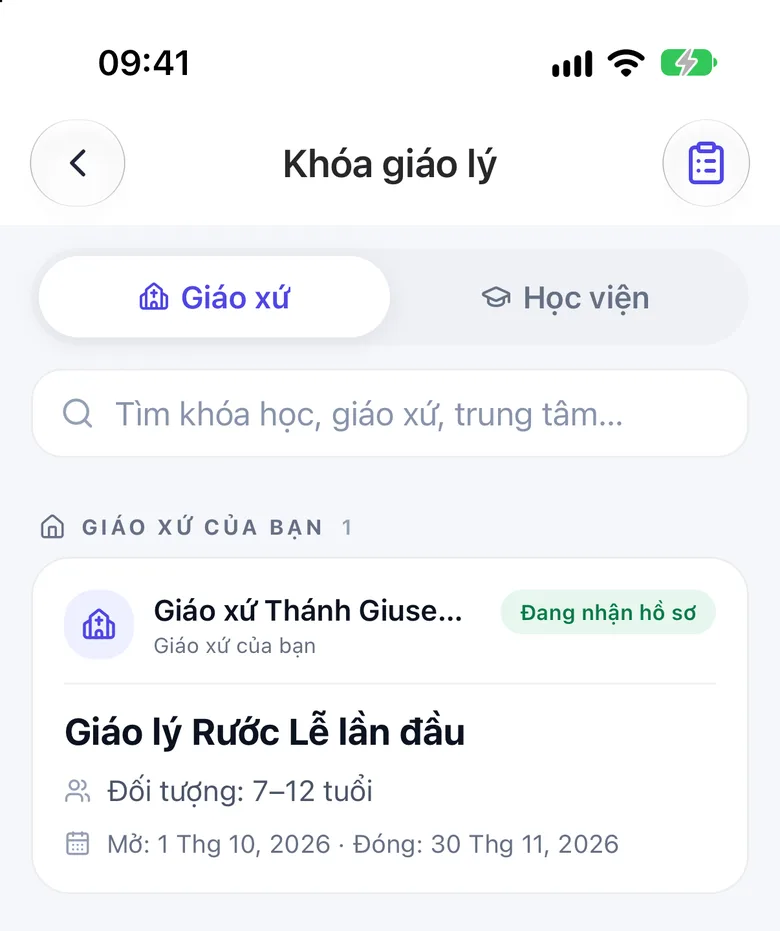
Tap the image to see it larger Choose an open enrolment
Catechism courses is grouped into Your parish and Nearby parishes. A course that still accepts applications is labelled Accepting applications. Tap the course you want to see its details.
To find a course of another parish, type in Search course, parish, center….
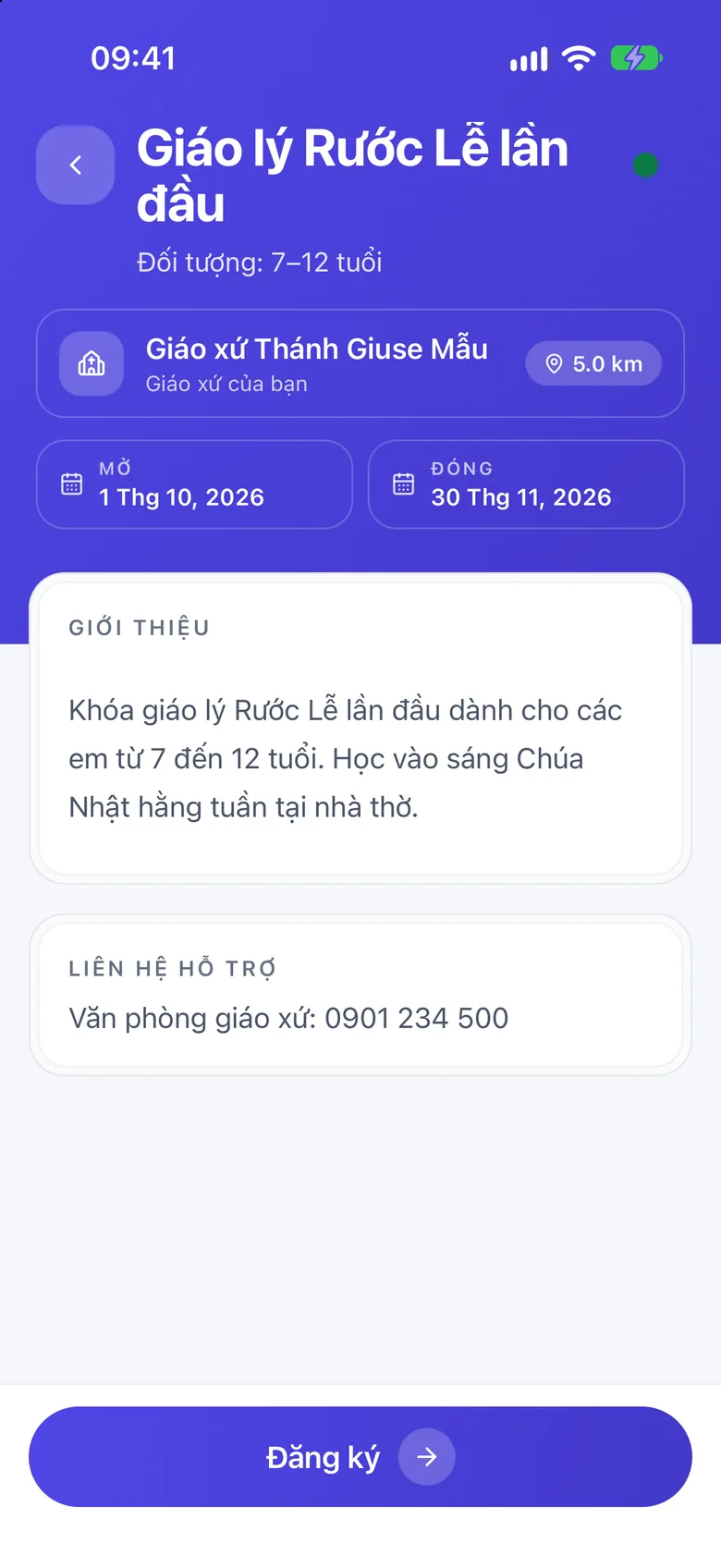
Tap the image to see it larger Tap “Register”
Read the Opens and Closes dates. The green dot at the top right means the enrolment is still open (tap it to see the words Now enrolling). Then tap Register.
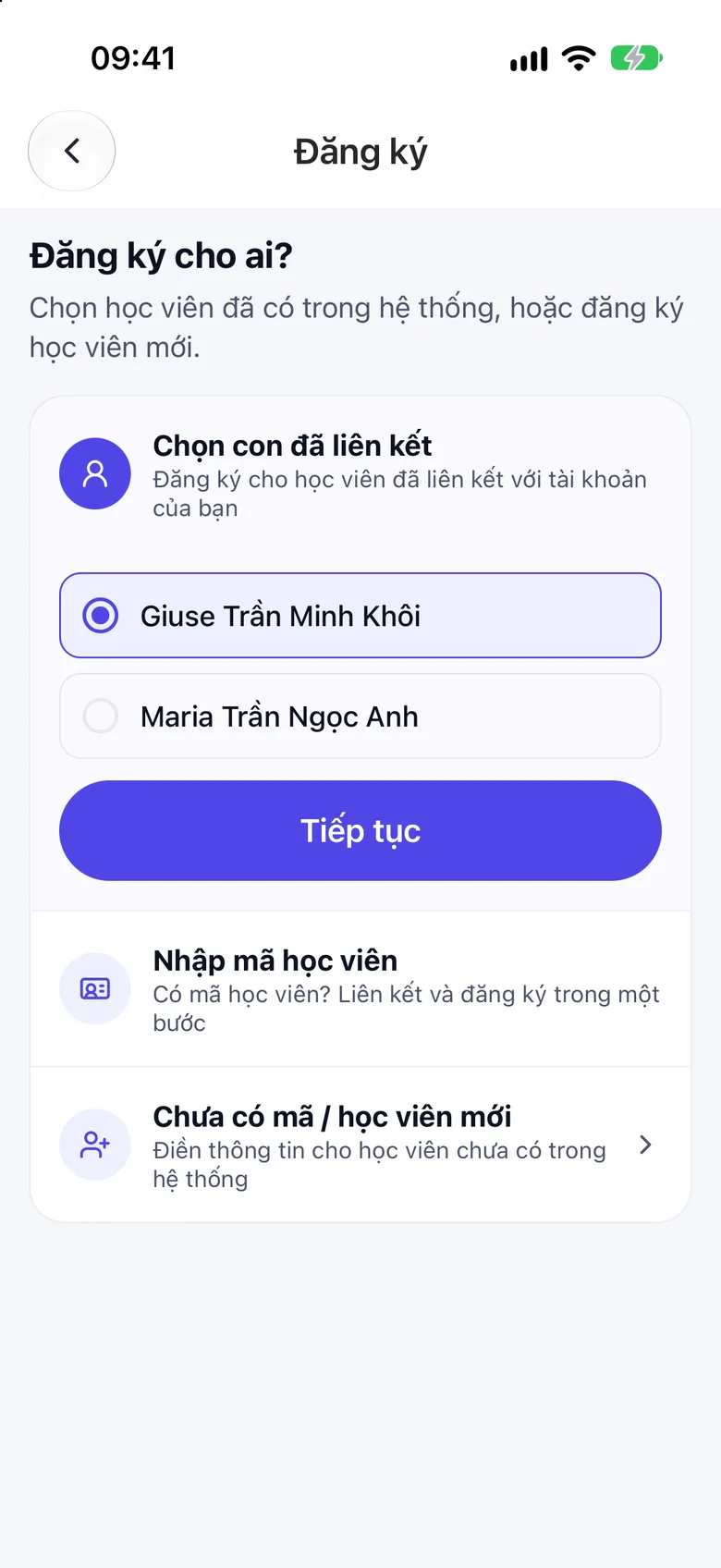
Tap the image to see it larger Answer “Who are you registering for?”
There are three choices:
- Choose a linked student: your child is already in your account.
- Enter a student code: type the code, tap Look up, then Confirm and register.
- No code / new student: fill in the details for a child who is not in the system yet.
Tap Continue when you have chosen.
Tap the image to see it larger Fill in the application in five steps
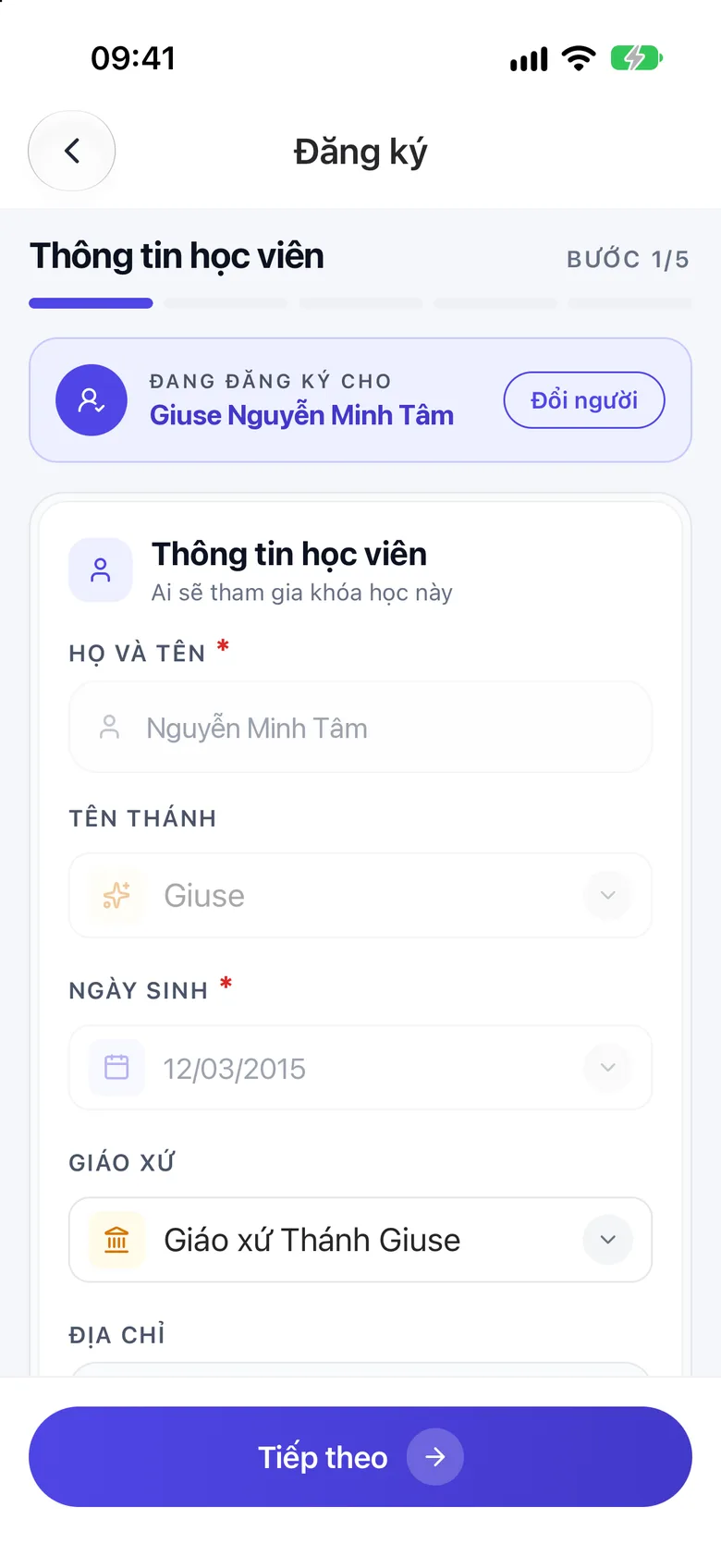
The application has five steps: Learner details, Sacraments received, Parent / guardian, Catholic family register, Review & submit. Tap Next to go on; from the second step there is also a Back button to fix something. If the application is already tied to a child from the previous screen, the top of Learner details shows Change person to choose again. At the Catholic family register step, attach documents if the parish asks for them.
Tap the image to see it larger Review and tap “Submit”
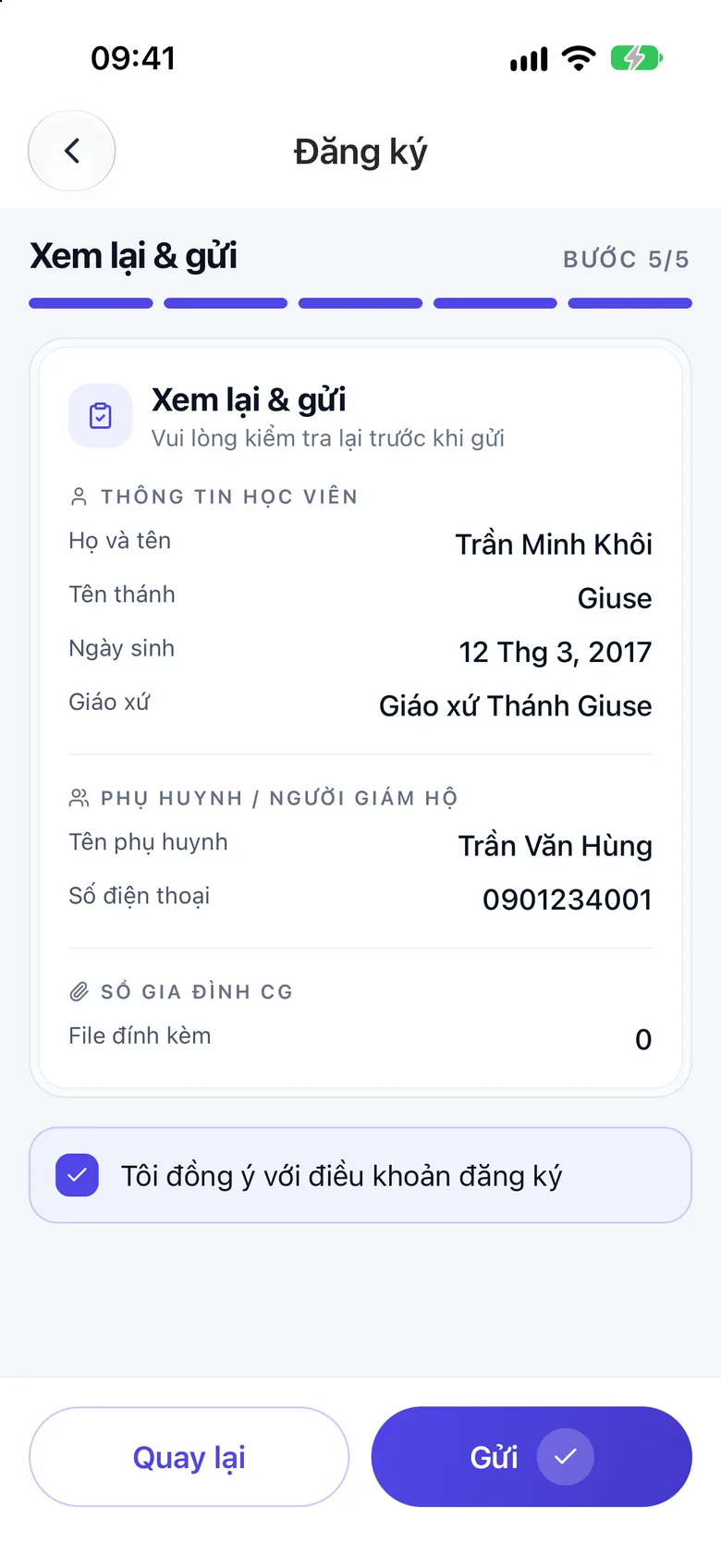
At Review & submit, read everything again, then tap Submit.
Tap the image to see it larger Follow the application
Go back to Catechism courses and tap the paper icon at the top right (My applications). Open the application to reach Track application.
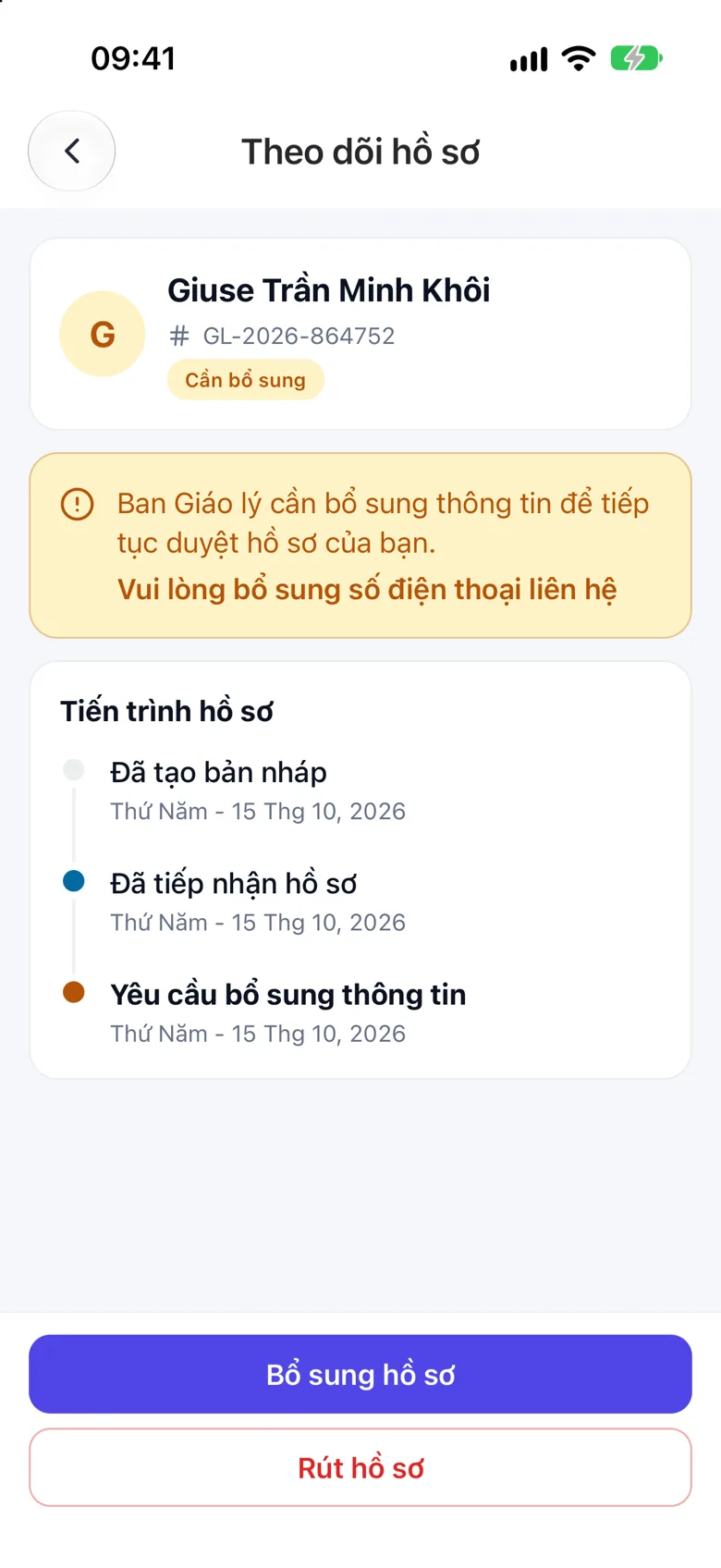
The Application progress card lists each step the application has passed, with its date. If the catechism team needs more from you, the yellow box says what is missing and the application shows Provide more info. You can Withdraw application if you no longer want to register.
Tap the image to see it larger
Something went wrong?
I see no open enrolment
The parish has not opened enrolment in the app. The screen says Your parish has no open courses yet. Ask the catechism team of your parish. If a nearby parish has an open course, it shows under Nearby parishes.
I left the form half-filled
Open My applications. An unsent application has Continue filling in.
“This registration period has ended”
The enrolment is past its closing date. Ask the catechism team whether the parish will open another one.
Next
- Your child is in a class: Link your child to your parent account to follow your child in the Communication Book.