Declare your household book
Done when: you have sent your household book for the parish to review and confirm.
Open «Build my household»
Tap Menu → tap your name → Build my household. You can also type «Household Book» in the Search features box in Menu.
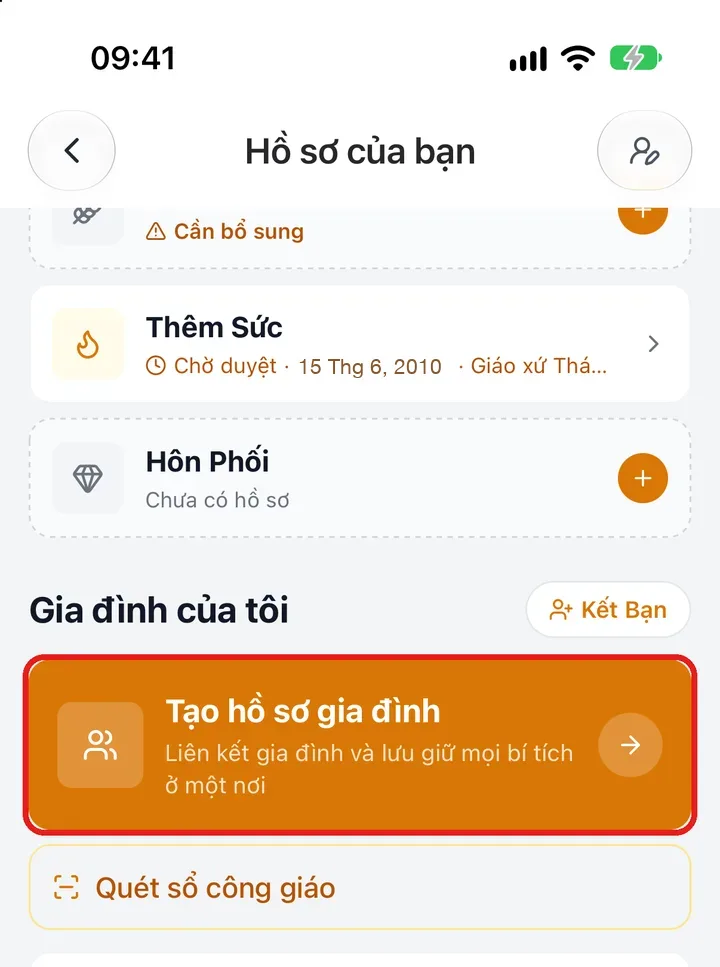
Tap the image to see it larger Fill in each part in turn
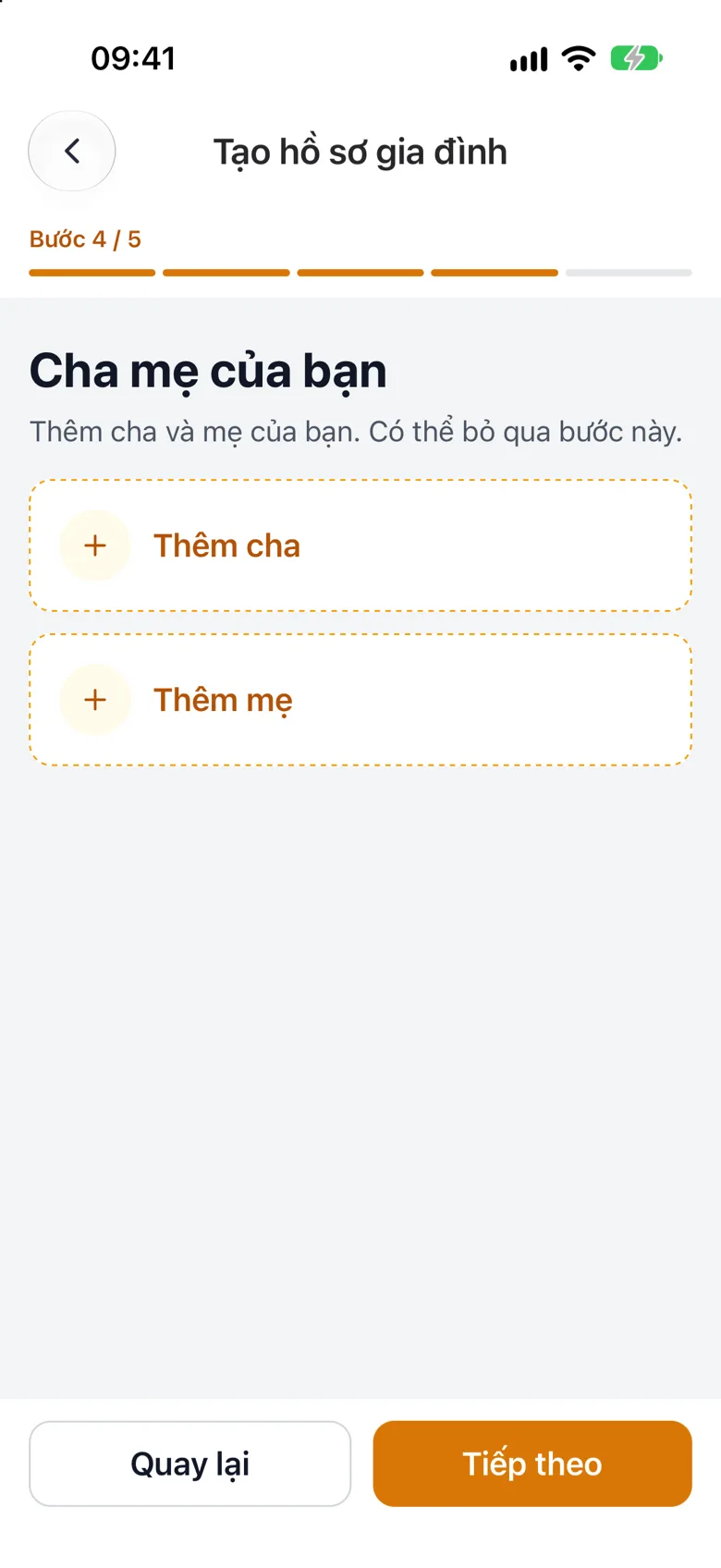
The app asks for one part at a time, in order: About you → Spouse → Your children → Your parents. The Step … / 5 line at the top shows where you are. Tap an Add … slot to add a person; if a part does not apply, tap Next to skip it. Tap Back to return to the previous part.
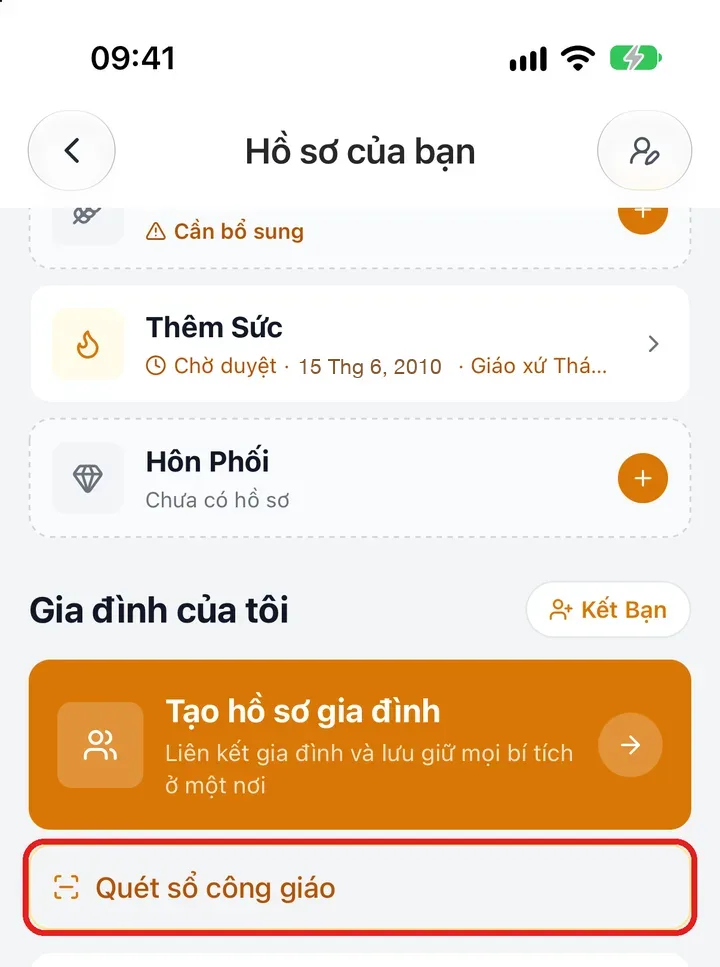
Tap the image to see it larger Or scan a photo of the family book
To let the app read a photo of the book for you, tap Scan family book on the same page. Scanning overwrites the household you have already started entering.
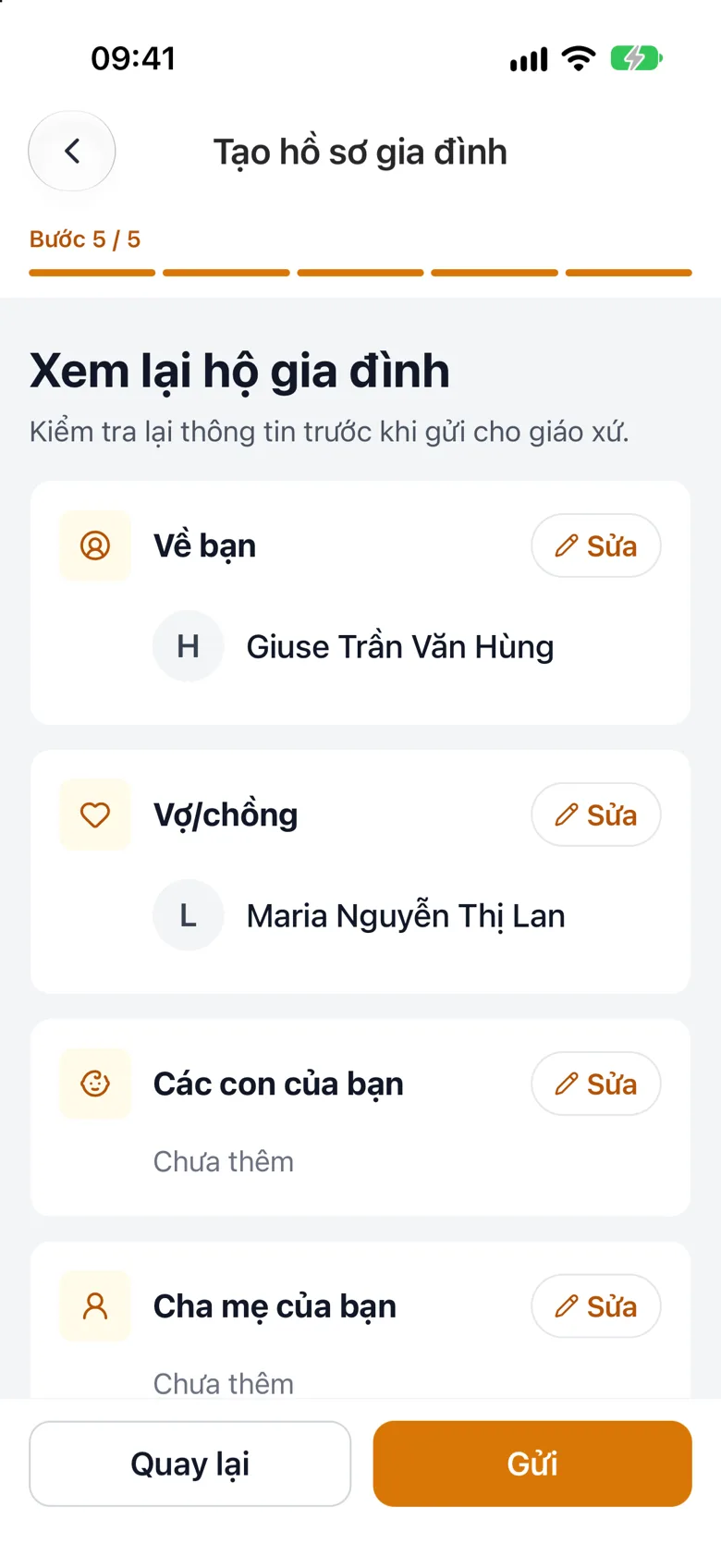
Tap the image to see it larger Review and send
Review your household lists all four parts; a part you skipped shows Not added. Tap Edit on any part to go back and fix it. Review carefully, then tap Submit. The parish will review and confirm.
Tap the image to see it larger
Something went wrong?
I do not see the «Build my household» button
You have already submitted or linked your household. In that case a status card replaces the button: Household submitted (awaiting parish confirmation) or Household linked.
I cannot send again
Each account can send once every 24 hours. Wait, then send again.
A name from the scanned photo is wrong
A blurry or tilted photo makes names misread. Check every name before sending, or retake the photo more clearly.