Scan a QR code
Who can do thisEveryone. The page the code opens may require sign-in (for example attendance).Phone~1 min
Done when: the app opens the page the QR code points to.
Open «Scan QR» in «Menu»
Tap the Menu tab, then Scan QR.
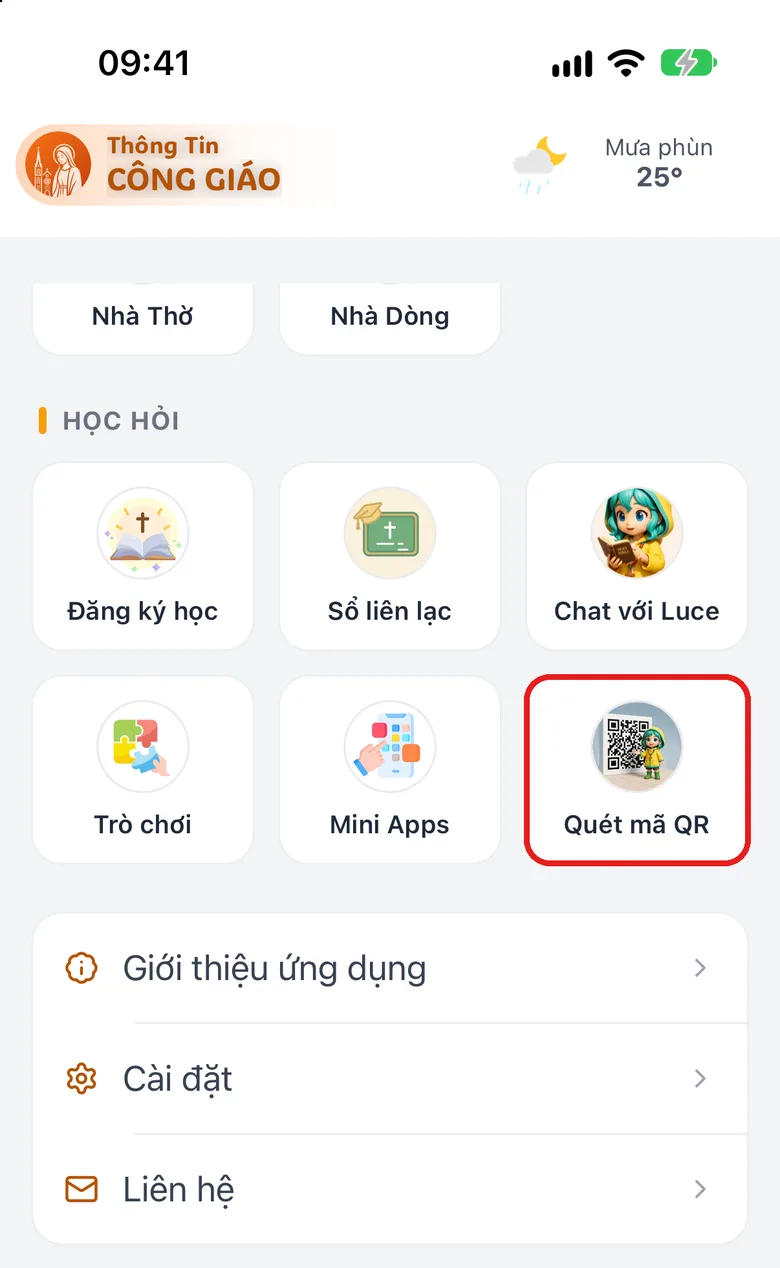
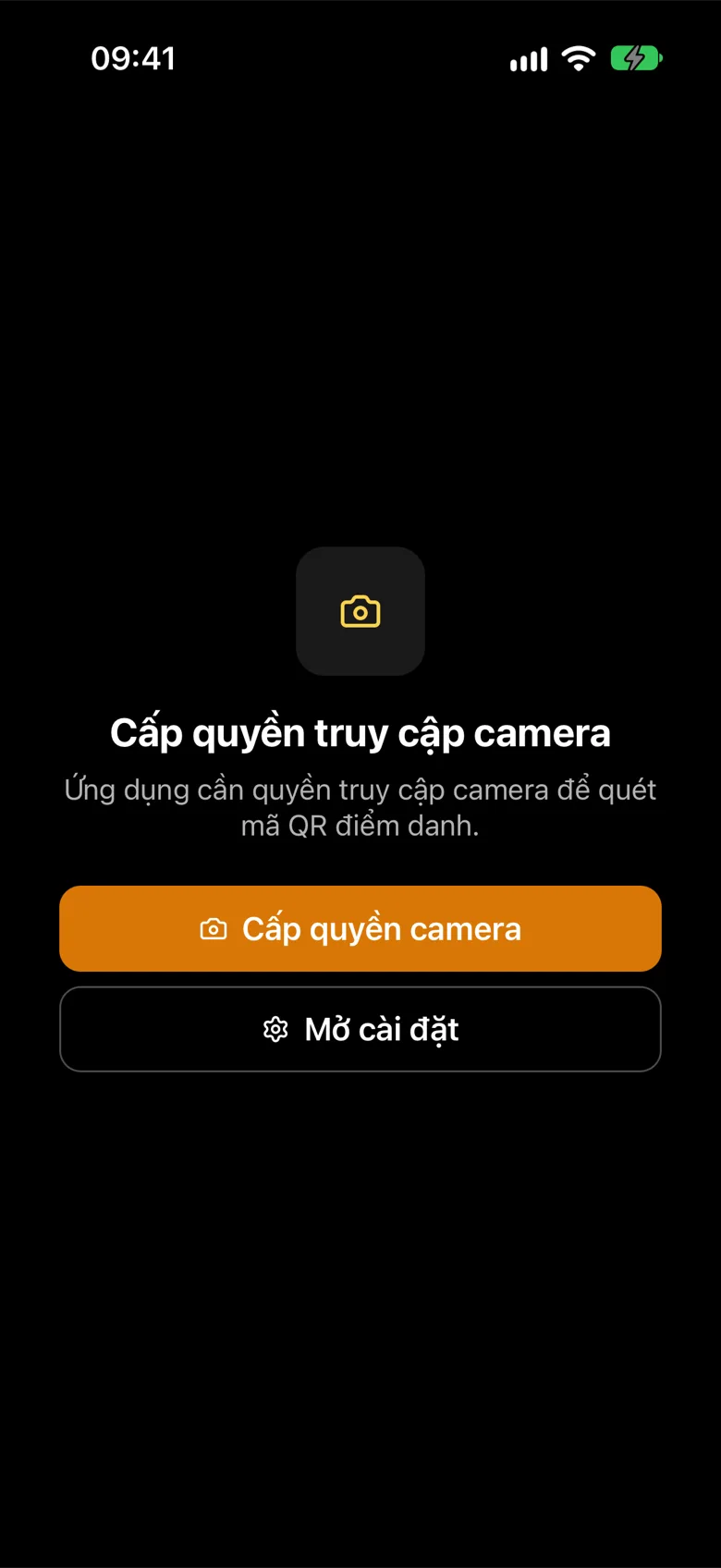
Tap the image to see it larger Allow camera access the first time
The first time, the phone asks whether the app may use the camera: allow it. If you said no before, this screen appears instead: tap Grant camera permission, or Open settings to turn the camera on for the app and come back.
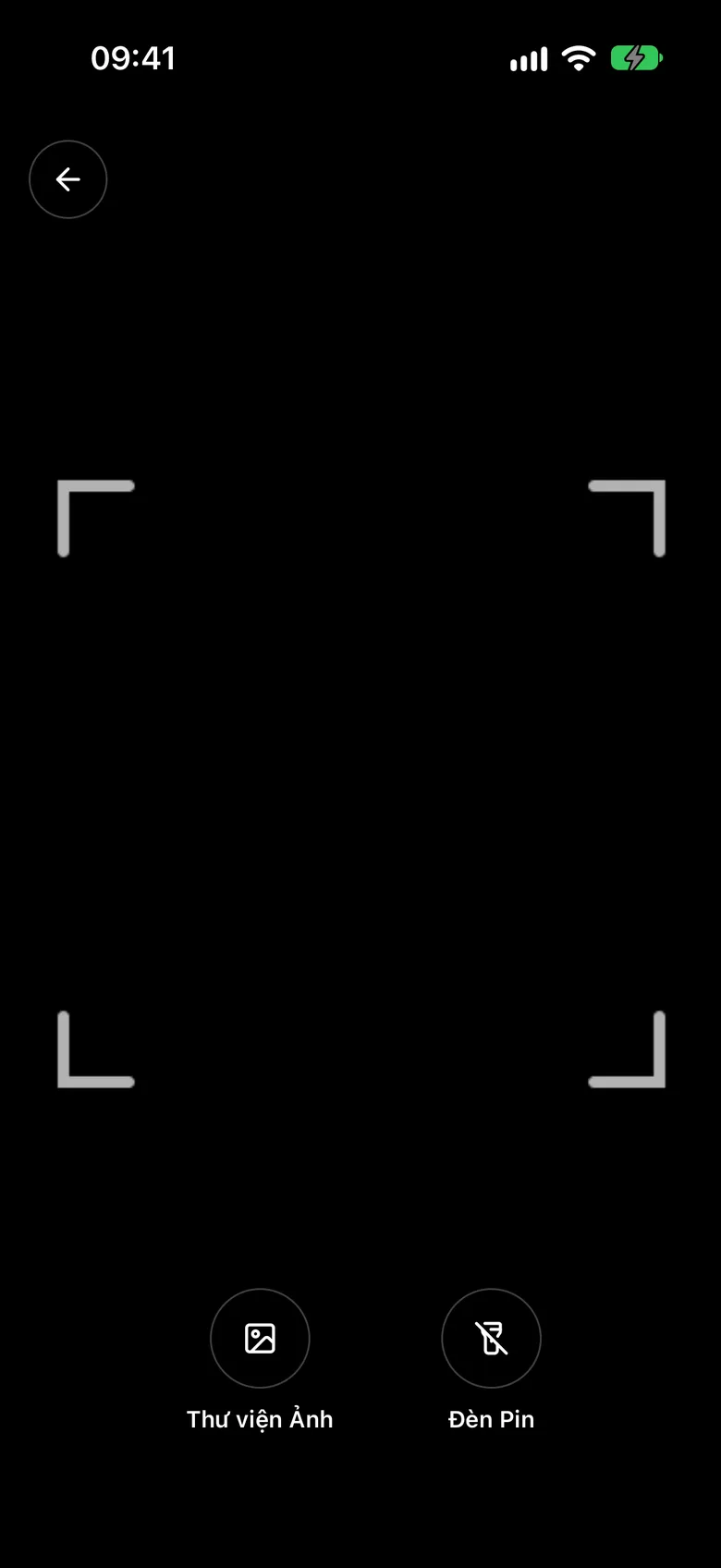
Tap the image to see it larger Put the code inside the frame
Hold the QR code inside the frame. If the code is in a saved picture, tap Photo Library. In the dark, turn on the Flashlight.
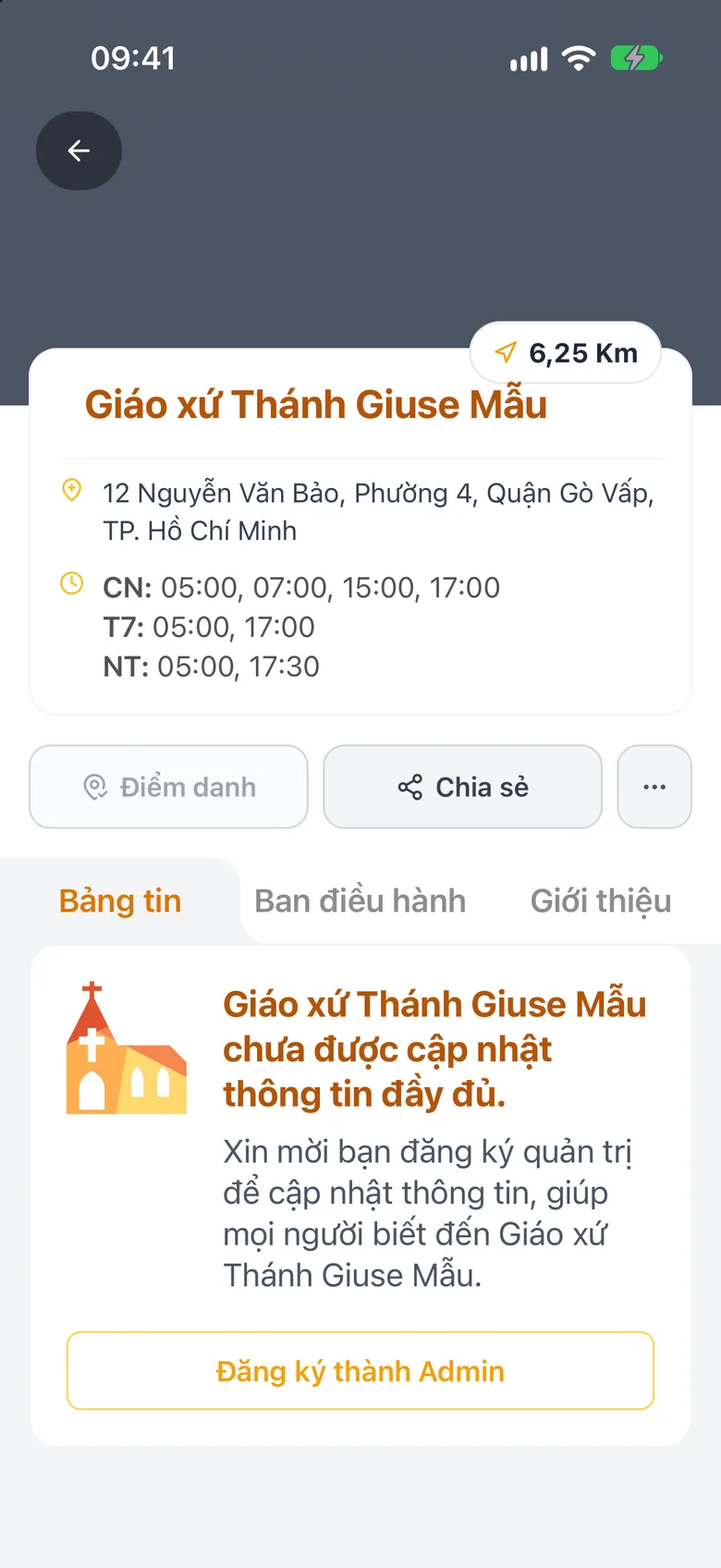
Tap the image to see it larger The app opens the right page
The app opens the matching page: a church, an attendance event, a game room, a class session, a student card, a holy card, a mini app or a sacrament certificate.
Tap the image to see it larger
Open it faster
Pin «Scan QR» as a shortcut on the home page. Your phone's own camera can also scan i-Catholic codes.
Something went wrong?
It says «Unsupported QR Code»
That code is not from i-Catholic. Try another code.