Get to know the «Menu» screen
Done when: you know where to find a feature in the app.
«Menu» is the last tab at the bottom of the app. Almost every feature has a tile here.
Open the «Menu» tab
Tap Menu at the bottom. At the top is a row with your name (tap it to edit your profile), then the Search features box and the feature groups.
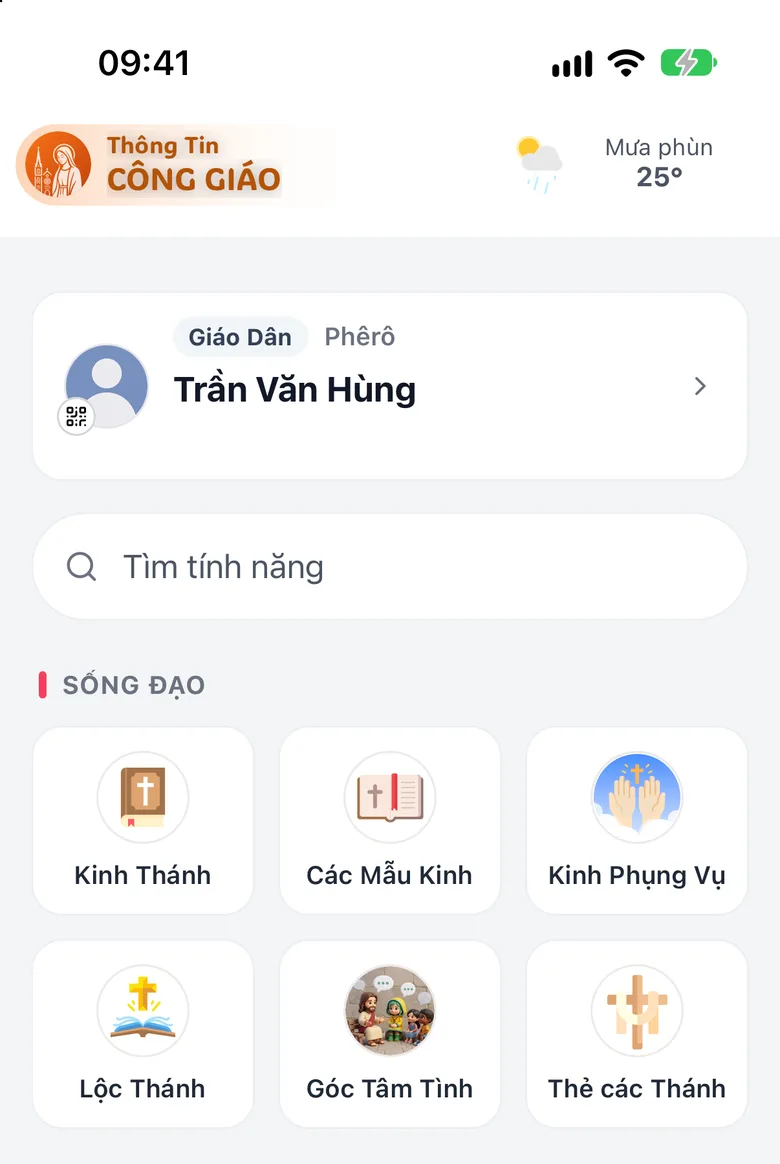
Tap the image to see it larger Look at the feature groups
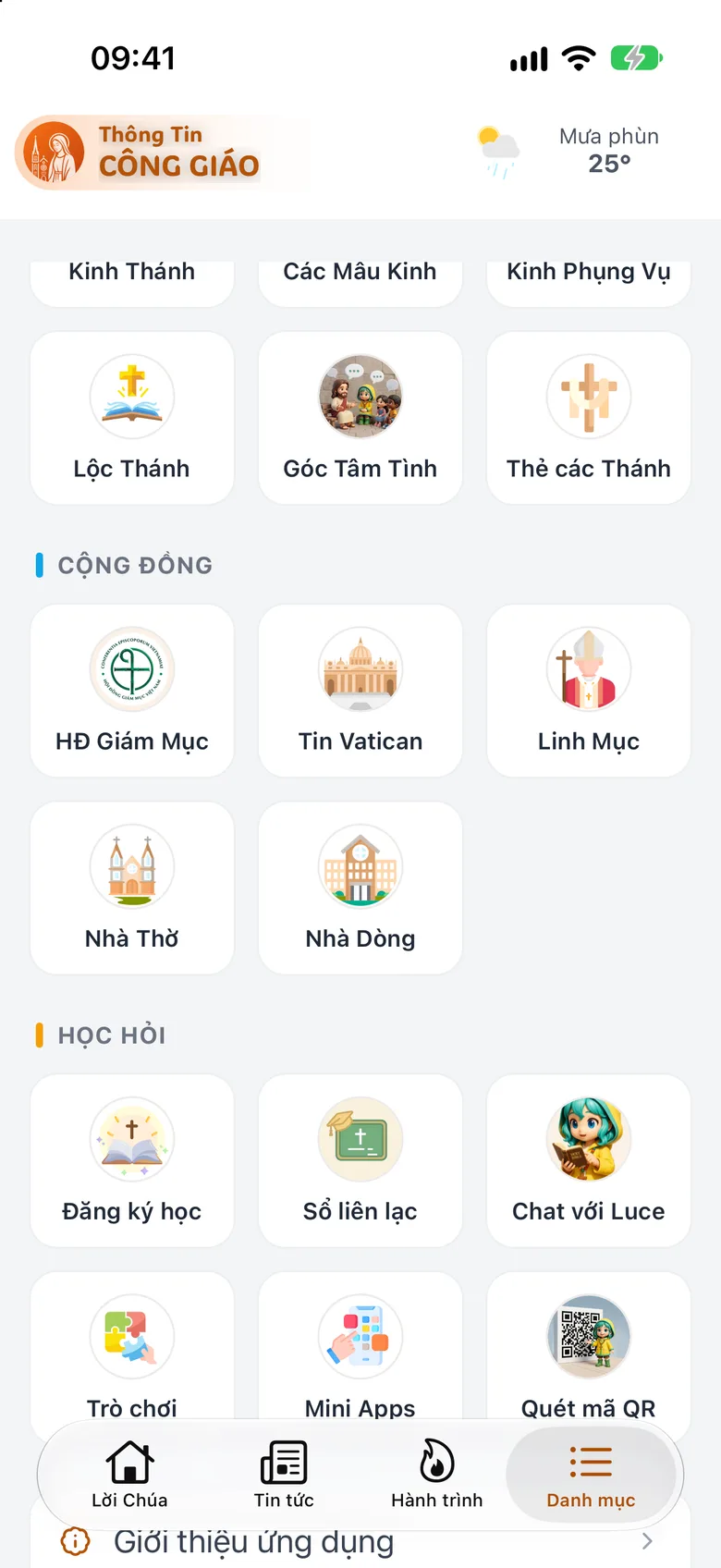
Scroll down to see each group:
- Living the Faith: «Bible», «Prayer Templates», «Divine Office», «Holy Blessing», «Your Heart to God», «Holy Cards».
- Learning: «Chat with Luce», «Games», «Mini Apps», «Scan QR» and the catechism class entries.
- Community: «Priests», «Churches», «Religious House» and Church news.
- Management: shown only when you hold a role in a parish. Not seeing it is normal.
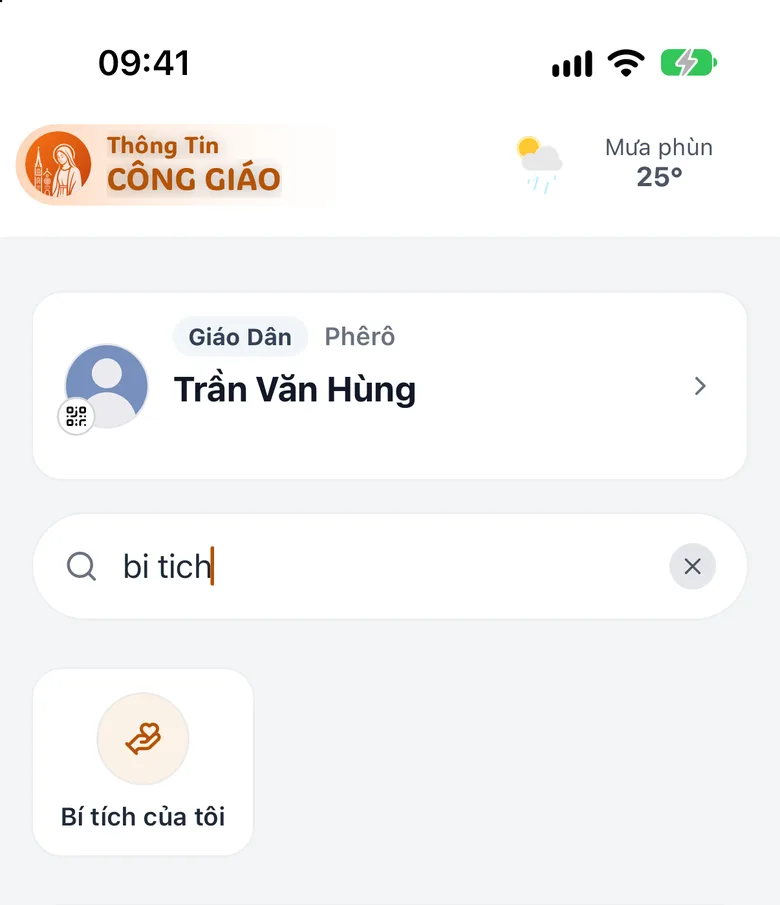
Tap the image to see it larger Type in «Search features»
Type the name of what you need, for example «bi tich» (accents are not needed). From two letters on, the list narrows to matching features.
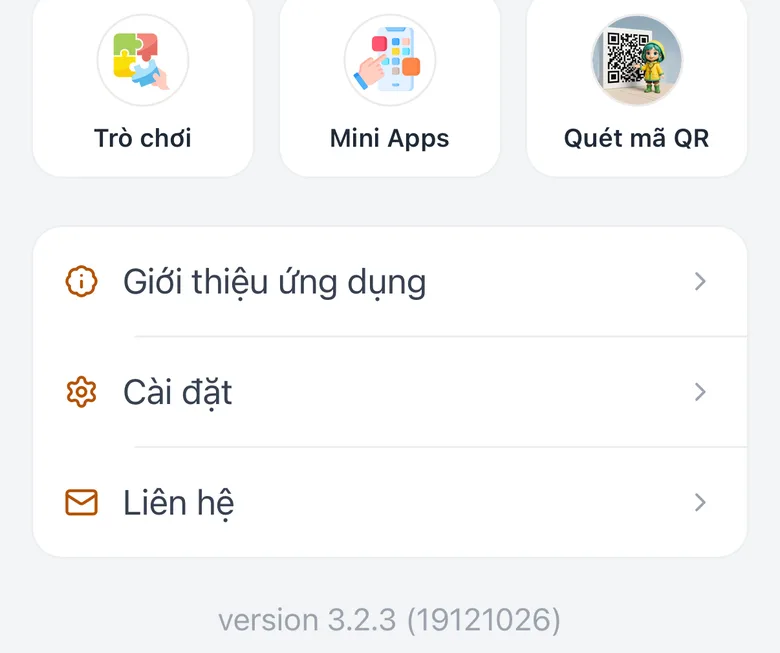
Tap the image to see it larger Find «Settings» and «Contact» at the bottom
Scroll to the bottom: App Introduction, Settings and Contact are there.
Tap the image to see it larger
«Word of God» is the home screen, with today's reading and a row of shortcuts (including «Notifications»). «News» is Church news. «Journey» holds the Journey of Faith game and the Journey Chain.
Something went wrong?
I cannot see «Catechism Class Management» or «Parish Administration»
Management entries appear only when you hold the matching role. See I cannot find the item I need.
My search finds nothing
Type at least two letters. Try another word. The line «No matching features» means the app has no entry with that name.