Install the app and sign in
Done when: the app opens and you see your name under «Menu».
- On the phone
- On the admin site
Find the app in the store
Open the App Store (iPhone) or Google Play (Android) and type «Thông Tin Công Giáo». Typing without accents («thong tin cong giao») works too. On the App Store the app may appear as «Catholic Information». It has a red icon with Our Lady.
Quick links: Google Play · App Store
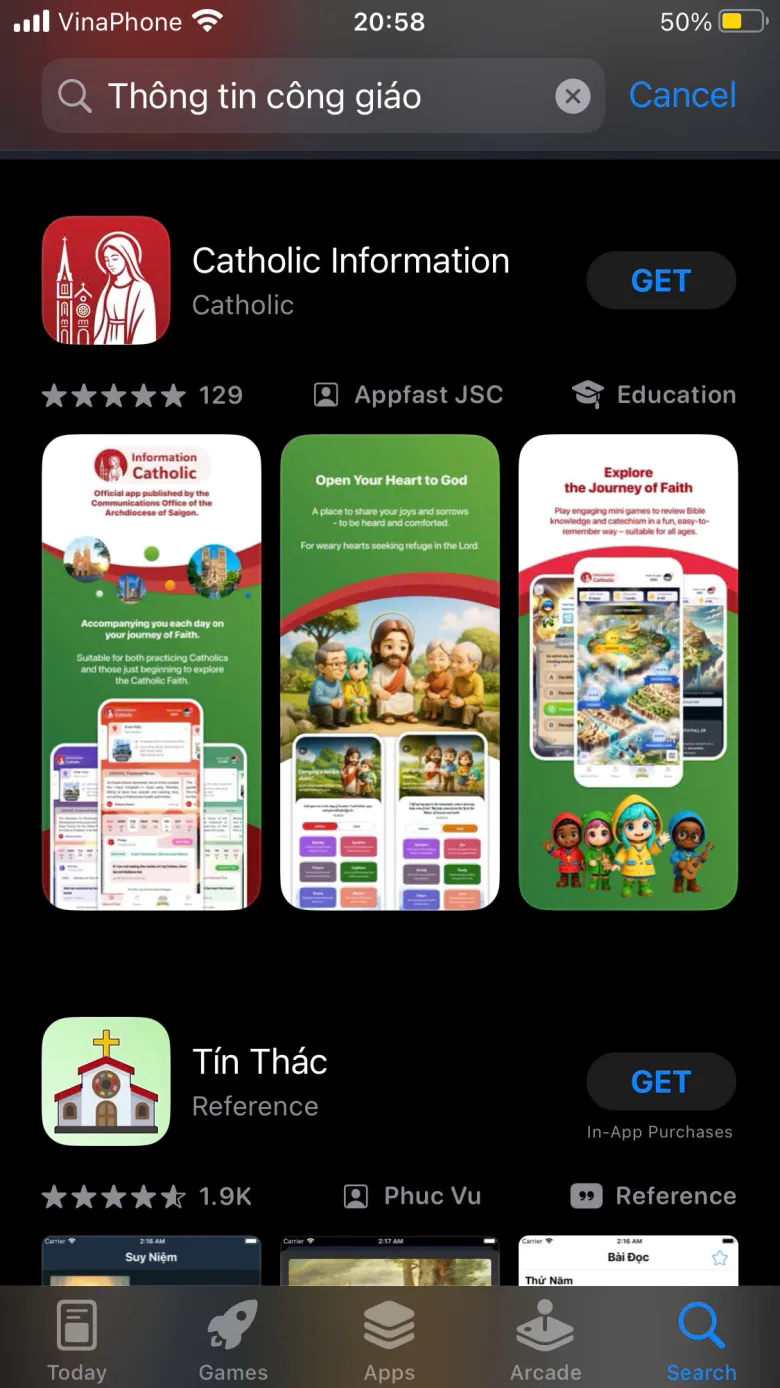
Tap the image to see it larger Install and open the app
Wait for the download, then open the app. Four tabs sit at the bottom: «Word of God», «News», «Journey» and «Menu».
Screenshot coming soonSS-bat-dau-cai-dat-va-dang-nhap-02The app home screen with four tabs at the bottom: Word of God, News, Journey, MenuOpen the «Menu» tab and tap «Sign In»
Tap the Menu tab at the bottom, then tap Sign In.
Screenshot coming soonSS-bat-dau-cai-dat-va-dang-nhap-03The Menu tab when signed out, with the «Sign In» button at the topChoose how to sign in
Tap Sign in with Google and pick the Google account you use every day. On iPhone there is also a button to sign in with Apple.
Screenshot coming soonSS-bat-dau-cai-dat-va-dang-nhap-04Sign-in screen with «Sign in with Google», the Apple sign-in button and «Continue as guest»Fill in your name and saint name the first time
The first time you sign in, update your name and saint name so your parish can recognise you. See Update your saint name and personal details.
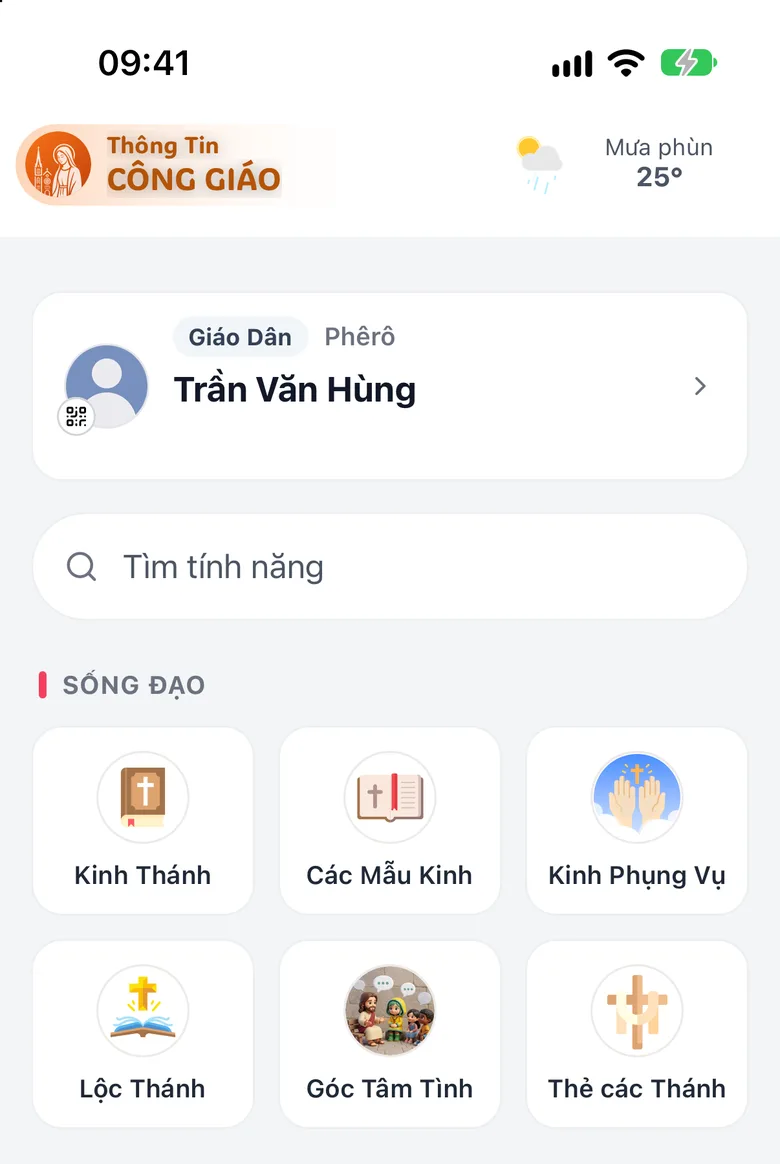
Tap the image to see it larger
The admin site uses the same account as the phone app, but signs in with Google only.
Open the sign-in page and click «Continue with Google»
Open the admin site at dash.i-catholic.org, click Continue with Google, and choose the same Google account you use in the app.
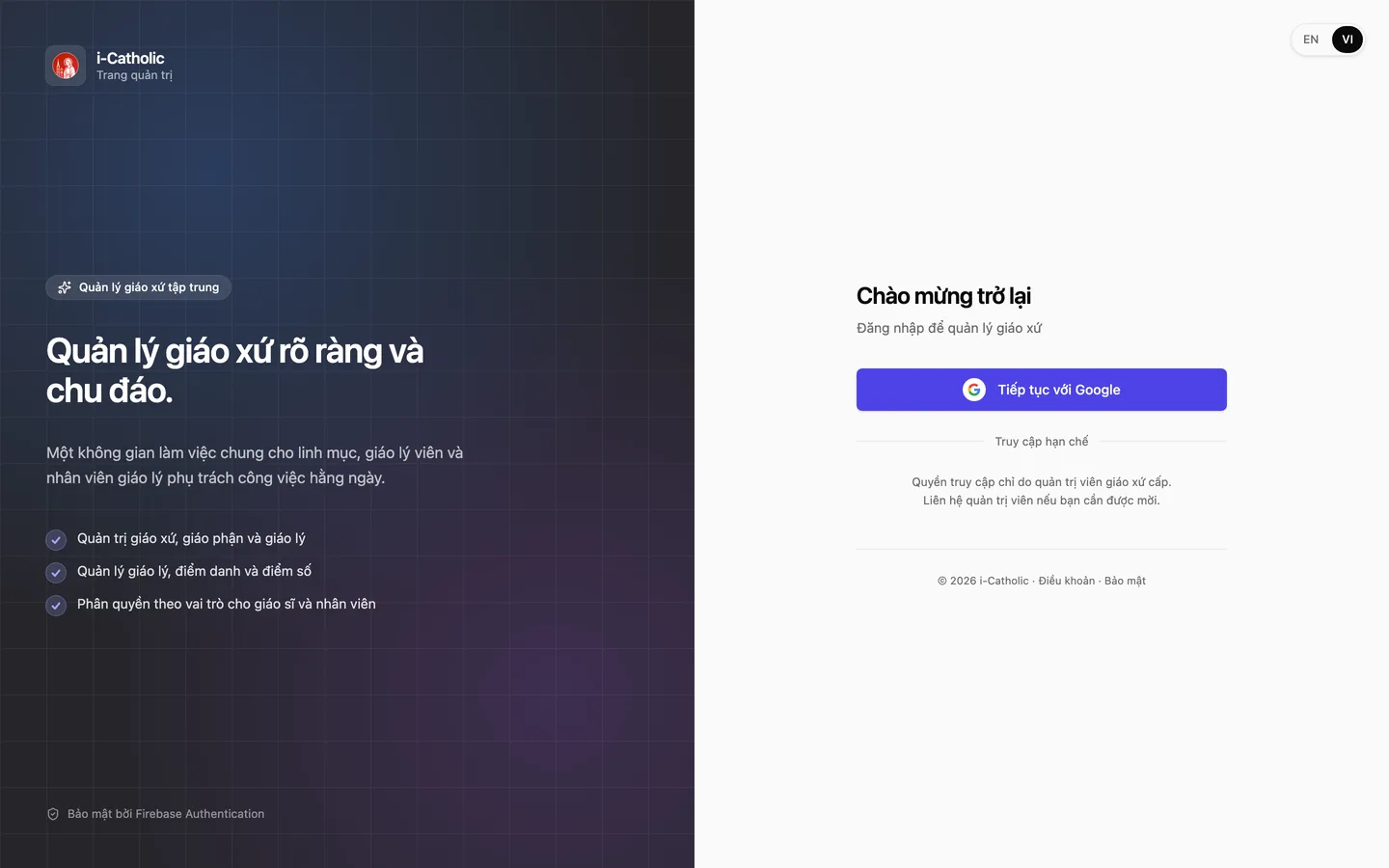
Tap the image to see it larger
You can tap «Continue as guest» to see part of the app. Parish features (profile, sacraments, catechism class) need a signed-in account.
Something went wrong?
I tapped «Continue as guest», now I want to sign in
Go to «Menu» → «Sign In». If the app says «You have anonymous progress», read it carefully: signing in replaces your current points with the data of the account you choose.
Google sign-in fails
See I cannot sign in.