Change language, text size, notifications
Done when: the app shows the language, text size and notifications you want.
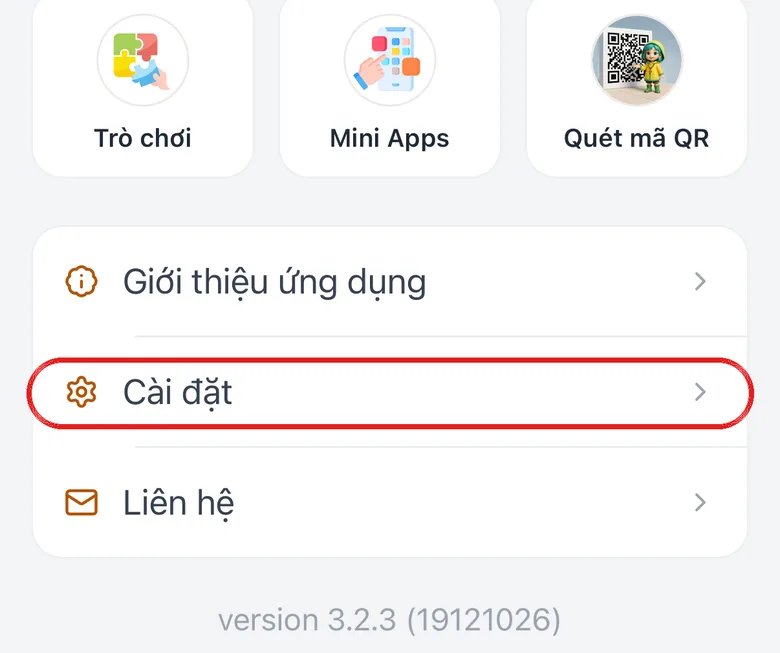
Open «Settings» in «Menu»
Open the Menu tab, scroll to the bottom and tap Settings.
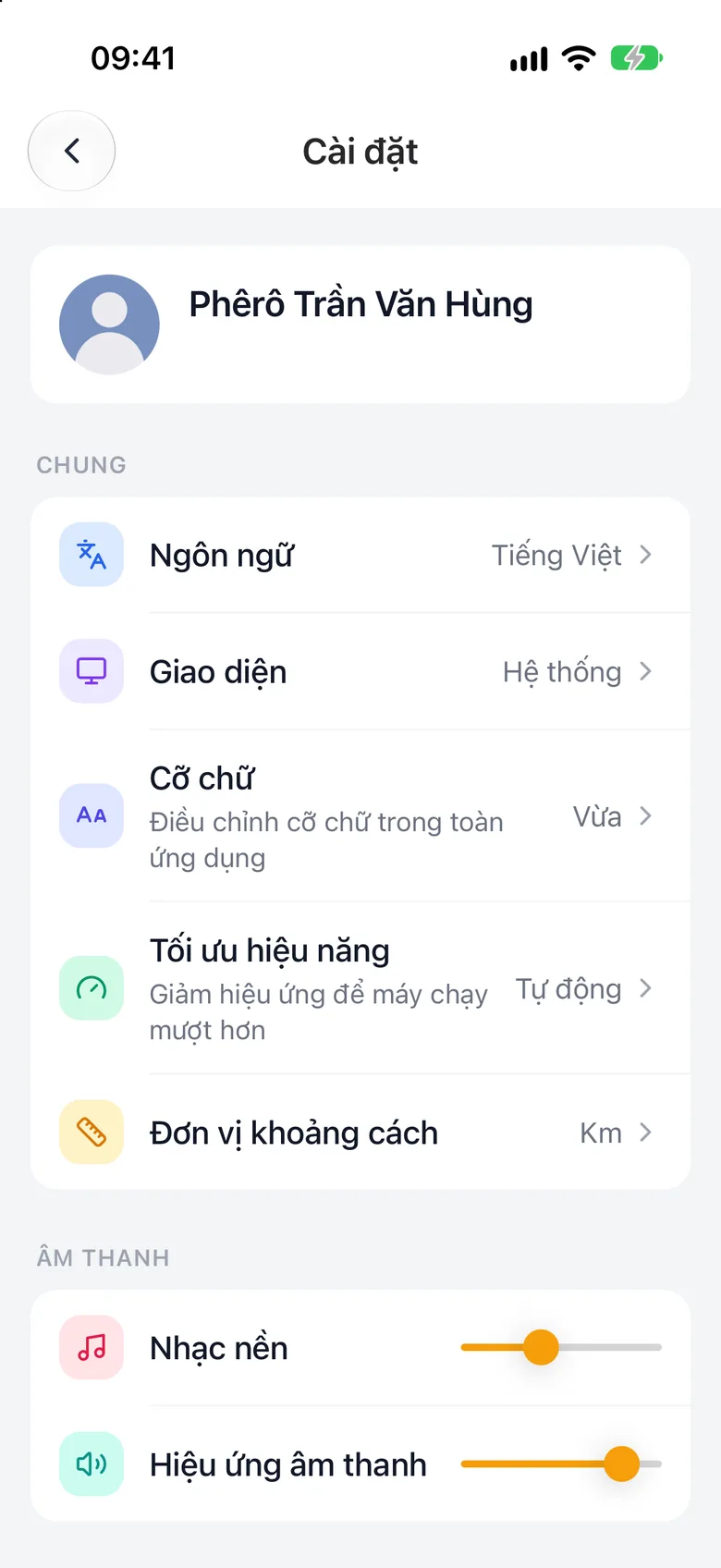
Tap the image to see it larger Change language, theme and text size
In the Common group choose Language, Theme (Light, Dark or System) and Text Size (Small, Default, Large, Extra large). Text size applies to the whole app.
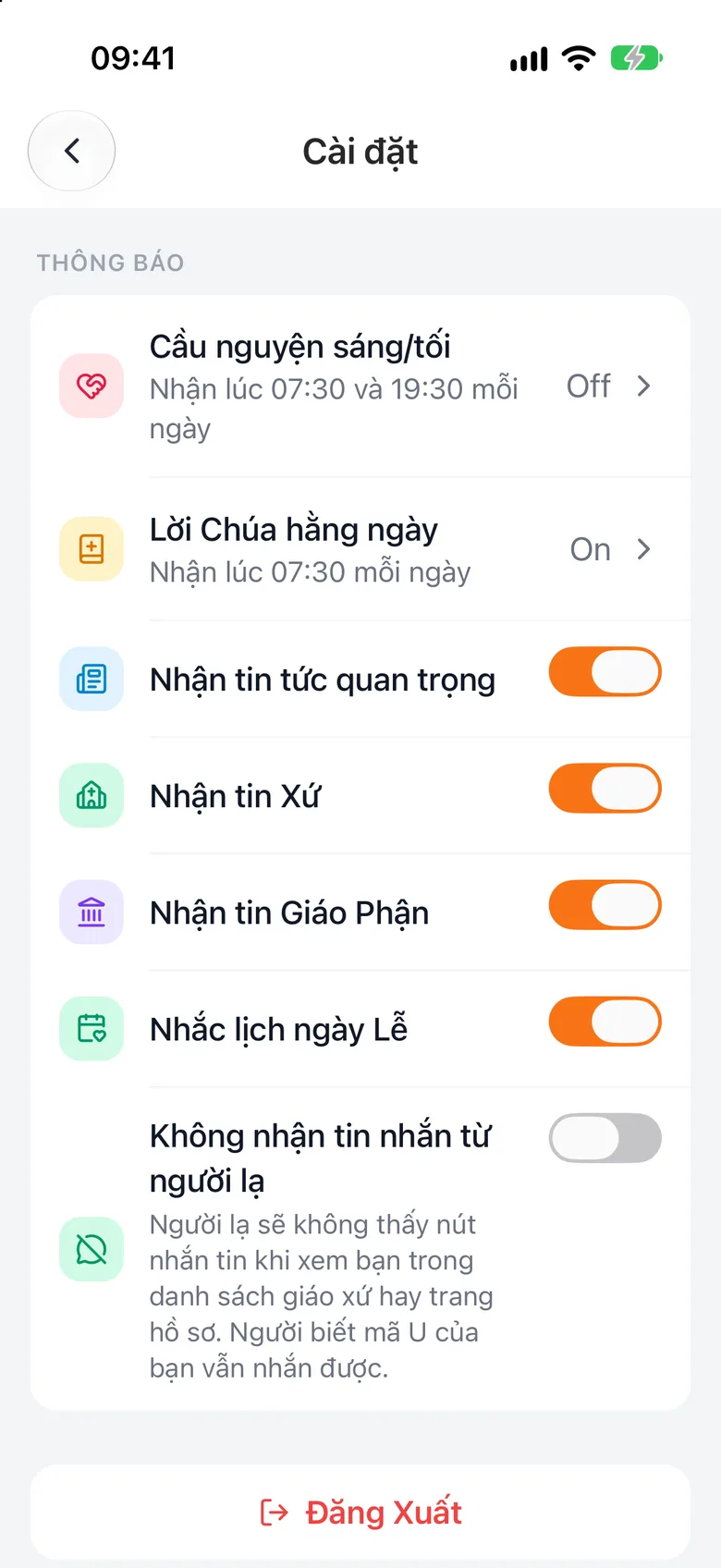
Tap the image to see it larger Turn notifications on or off
In the Notifications group, switch each type on or off: morning/evening prayer, daily Word of God, parish news, diocese news, feast-day reminders.
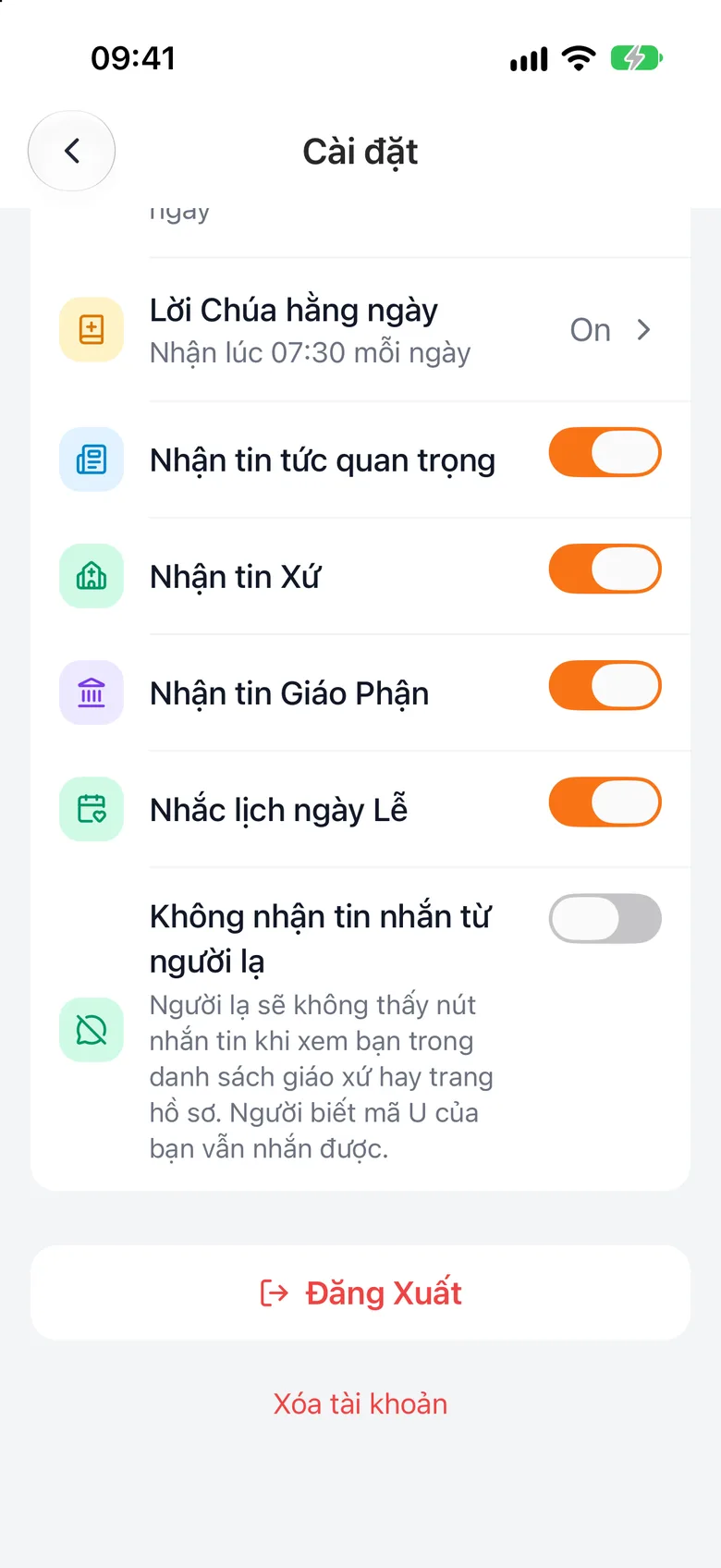
Tap the image to see it larger Sign out or delete your account at the bottom
At the bottom are Sign Out and Delete account. Deleting only starts after you confirm.
Tap the image to see it larger
The account is permanently deleted on the date the app shows. Changed your mind? Sign in again before that date and choose «Restore account». Deleting your account does not delete your parishioner record in the parish register.
Something went wrong?
I do not receive notifications
Check that your phone allows i-Catholic to send notifications (phone settings) and that the switch for that type in «Settings» is on. See also View notifications.